
How to Set Up Your Hyperank Brand Hub - Step-by-Step Guide (2026)
Discover the essential steps in our comprehensive guide on how to set up your Hyperank Brand Hub - Step-by-Step Guide for effective brand management.
How to Set Up Your Hyperank Brand Hub - Step-by-Step Guide | Updated October 2026 | hyperank Editorial Team | 20-30 minutes | Beginner
What You'll Learn
To set up your hyperank Brand Hub, open your site in hyperank, choose Brand Hub in the sidebar and complete its four areas: Business (who you are, what you offer and who you serve), Competitors (up to 10 rival domains), Media (your sitemap, blog URL and content preferences) and Authority Signals (links to your insights, reviews and research). The Brand Hub is, in hyperank's own words, "what you tell models about yourself": every article, content opportunity and AI visibility insight hyperank produces for your brand draws on it. This guide, How to Set Up Your Hyperank Brand Hub - Step-by-Step Guide (2026), walks through each area and what to put in it.
- Describe your business: Name, description, value proposition, audiences, industries, voice and messaging.
- Name your competitors: Add rivals manually or let hyperank suggest them.
- Set content preferences: Sitemap, blog URL, internal links, images, video and calls to action.
- Add authority signals: Point hyperank to the pages that prove your claims.
Prerequisites: A hyperank account with your site added, plus your sitemap URL, blog URL and a list of your main competitors.
Why the Brand Hub Matters in 2026
AI engines describe your brand based on what they find about you, and hyperank's content tools describe your brand based on what you tell them. The Brand Hub is where you tell them. If it's thin or vague, generated articles come out generic; if it's specific, they sound like you and say what you'd actually say.
It also anchors comparisons. hyperank helps brands see what AI says about them by aggregating daily insights from six major AI engines and capturing the qualitative answers and trends, not just rankings, so you know how your brand stacks up, what needs attention and what AI gets right or wrong. Knowing who your competitors are, and how you position yourself against them, is what makes those comparisons useful. hyperank believes understanding and influencing how AI engines represent your brand is now critical, and the Brand Hub is the first place you exercise that control.
Key Takeaway: Twenty minutes in the Brand Hub decides the quality of everything hyperank writes and reports for your brand.
The Process at a Glance
| Step | Action | Time | Outcome |
|---|---|---|---|
| 1 | Open the Brand Hub for your site | 1 minute | Four setup areas and progress visible |
| 2 | Complete the Business area | 8-10 minutes | Clear description, audiences, voice |
| 3 | Add your competitors | 3-5 minutes | One to ten rival domains saved |
| 4 | Set Media and content preferences | 5-8 minutes | Sitemap, links, images and CTA set |
| 5 | Add your authority signals | 3-5 minutes | Insights, reviews and research linked |
Total time: About 20-30 minutes for a first setup; you can fill the areas in any order and return later.
Step 1: Open the Brand Hub for Your Site
What You're Doing
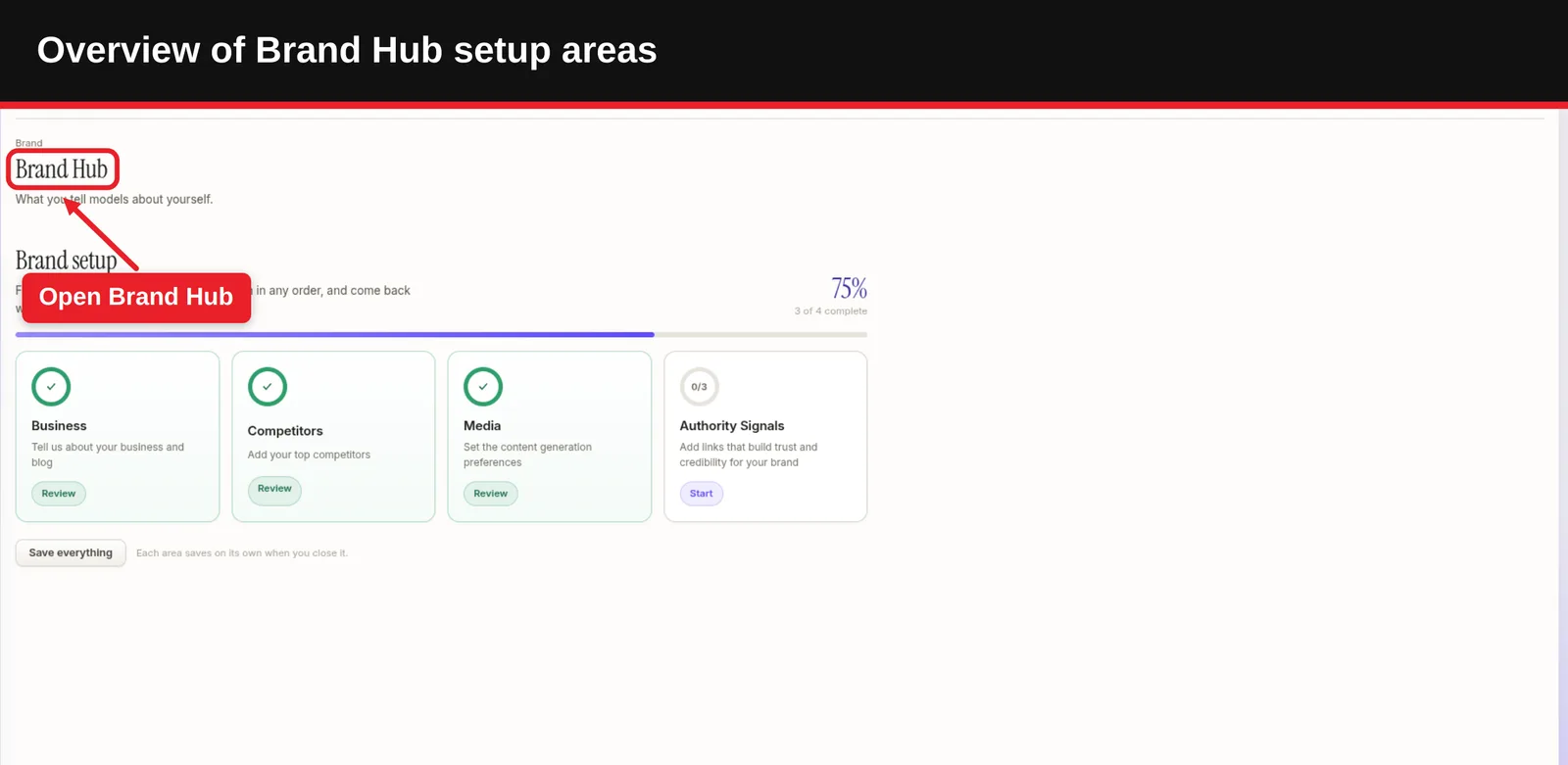
You're finding the Brand Hub and getting oriented. It lives at the site level, so each site you track in hyperank has its own.
How to Do It
- Sign in to hyperank and select the site you want to set up.
- Choose Brand Hub in the sidebar.
- Read the progress bar: The Brand setup screen shows four areas, Business, Competitors, Media and Authority Signals, with a ring on each tile showing how many of its fields are filled and an overall percentage complete.
- Pick an area: Each tile says Start, Continue or Review. As the page puts it, you can "fill them in any order, and come back whenever something changes."
What Done Looks Like
You're on the Brand setup screen and can see which of the four areas still need attention.
Step 2: Complete the Business Area
What You're Doing
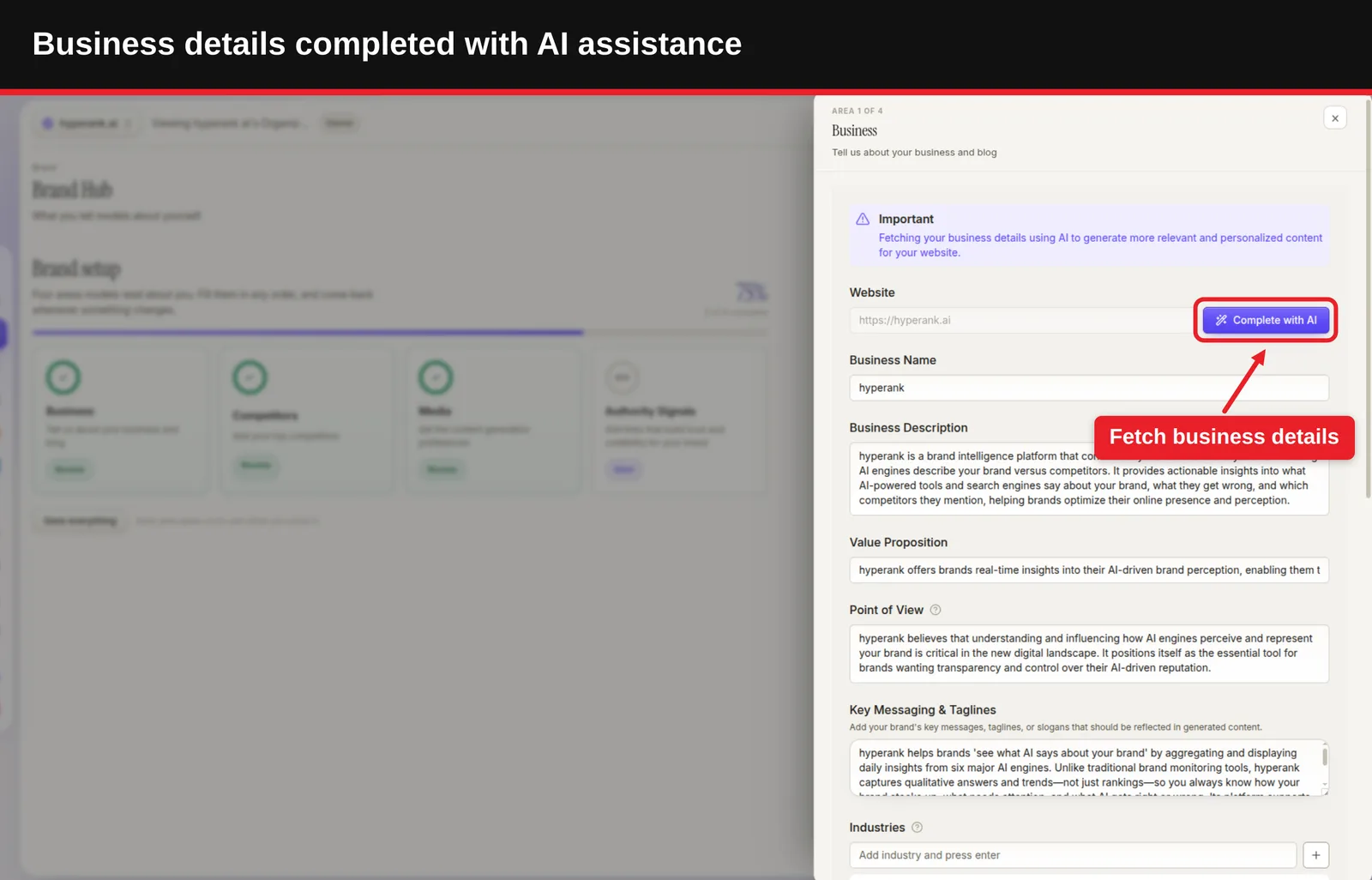
This is the most important area: it's how hyperank understands what your company does, who it's for and how it talks. hyperank can fetch your business details with AI from your website to get you started, but you should always review and sharpen them.
How to Do It
| Field | What to write | Weak example | Strong example |
|---|---|---|---|
| Business Name | Your brand name as you want it written | acme inc | Acme Analytics |
| Business Description | What you do, for whom and how, in 2-4 sentences | We are a leading solution provider. | Acme Analytics helps Shopify stores forecast inventory from sales data, so they reorder before they sell out. |
| Value Proposition | What makes you different | Best quality, great service | Forecasts update daily from your live Shopify orders, with no spreadsheets |
| Industries | Markets you serve | Business | E-commerce, retail, DTC brands |
| Target Audiences | Who reads and buys | Everyone | Shopify store owners, operations managers |
Voice and configuration
- Point of View: The narrative perspective, for example first-person plural ("we, us, our") as a team sharing expertise.
- Key Messaging & Taglines: The messages, taglines or slogans you want reflected in generated content.
- Country, language and timezone: Your target country, primary language and timezone; the timezone also updates article and LinkedIn scheduling.
- Tone and Style: Choose from options such as Professional, Authoritative, Friendly or Inspirational.
Common Mistakes
- Leaving AI-filled text unchecked: Auto-filled descriptions are a starting point; edit out anything vague or wrong. If a stranger couldn't tell what you sell from the description alone, neither can a model.
What Done Looks Like
The Business tile shows a check, with a specific description, a clear value proposition and named audiences.
Step 3: Add Your Competitors
What You're Doing
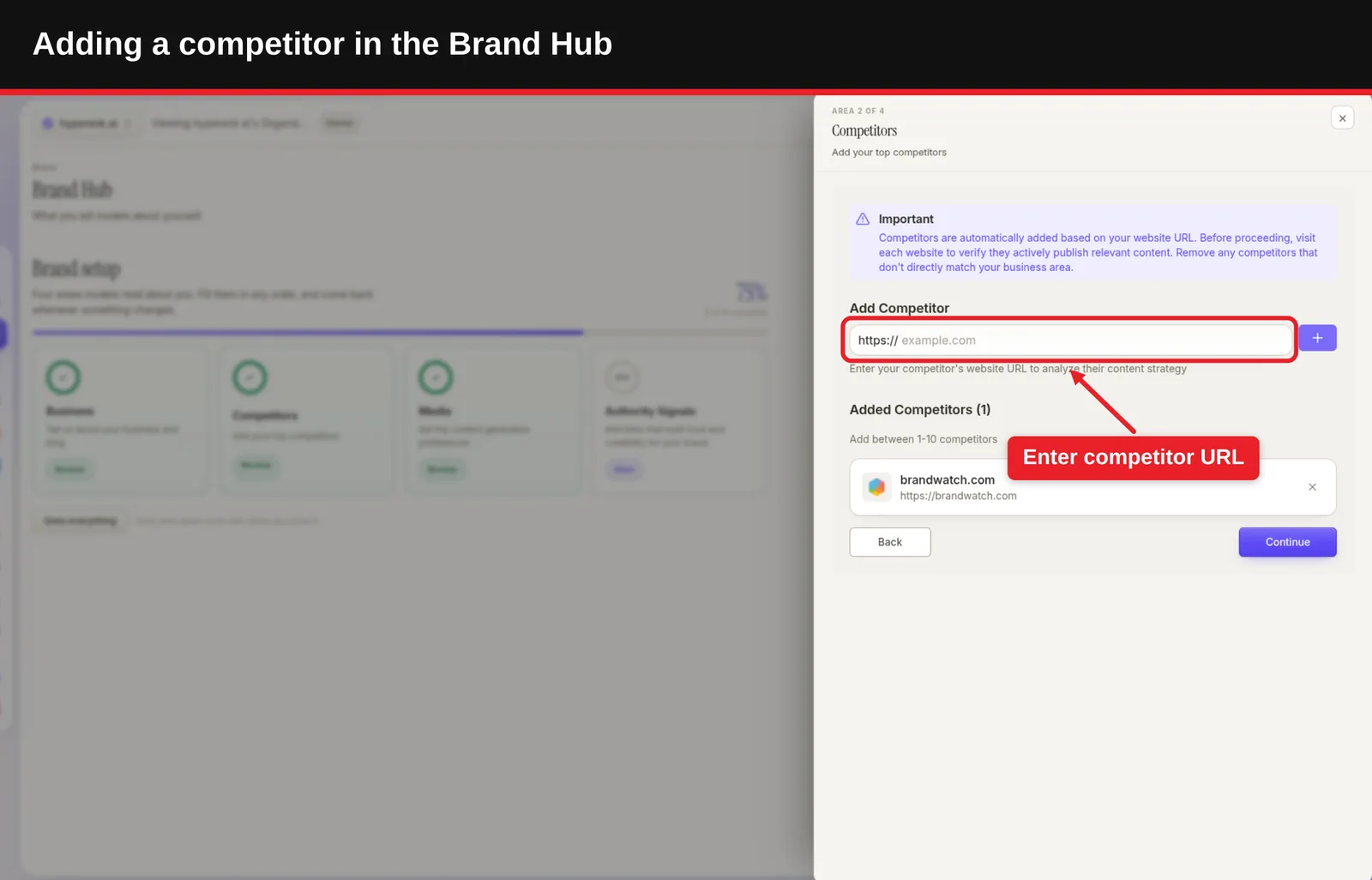
You're telling hyperank who you compete with, so content and AI visibility comparisons are measured against the right brands. The Competitors area accepts between one and ten competitors.
How to Do It
- Let hyperank suggest them: It can find competitors through AI based on your business details.
- Review the suggestions: Keep the ones your buyers actually compare you with; remove brands in a different category.
- Add missing ones by domain: Enter a domain such as example.com for any rival not suggested.
- Mix direct and search rivals: Include the brands you lose deals to and the ones AI engines tend to name alongside you.
Example
| Competitor type | Include? | Why |
|---|---|---|
| Direct rival with the same product | Yes | Buyers compare you directly |
| Brand AI engines often name with you | Yes | Shapes your share of AI answers |
| Large platform in an adjacent category | Only if buyers choose between you | Otherwise it skews comparisons |
What Done Looks Like
Between one and ten relevant competitor domains are saved.
Step 4: Set Your Media and Content Preferences
What You're Doing
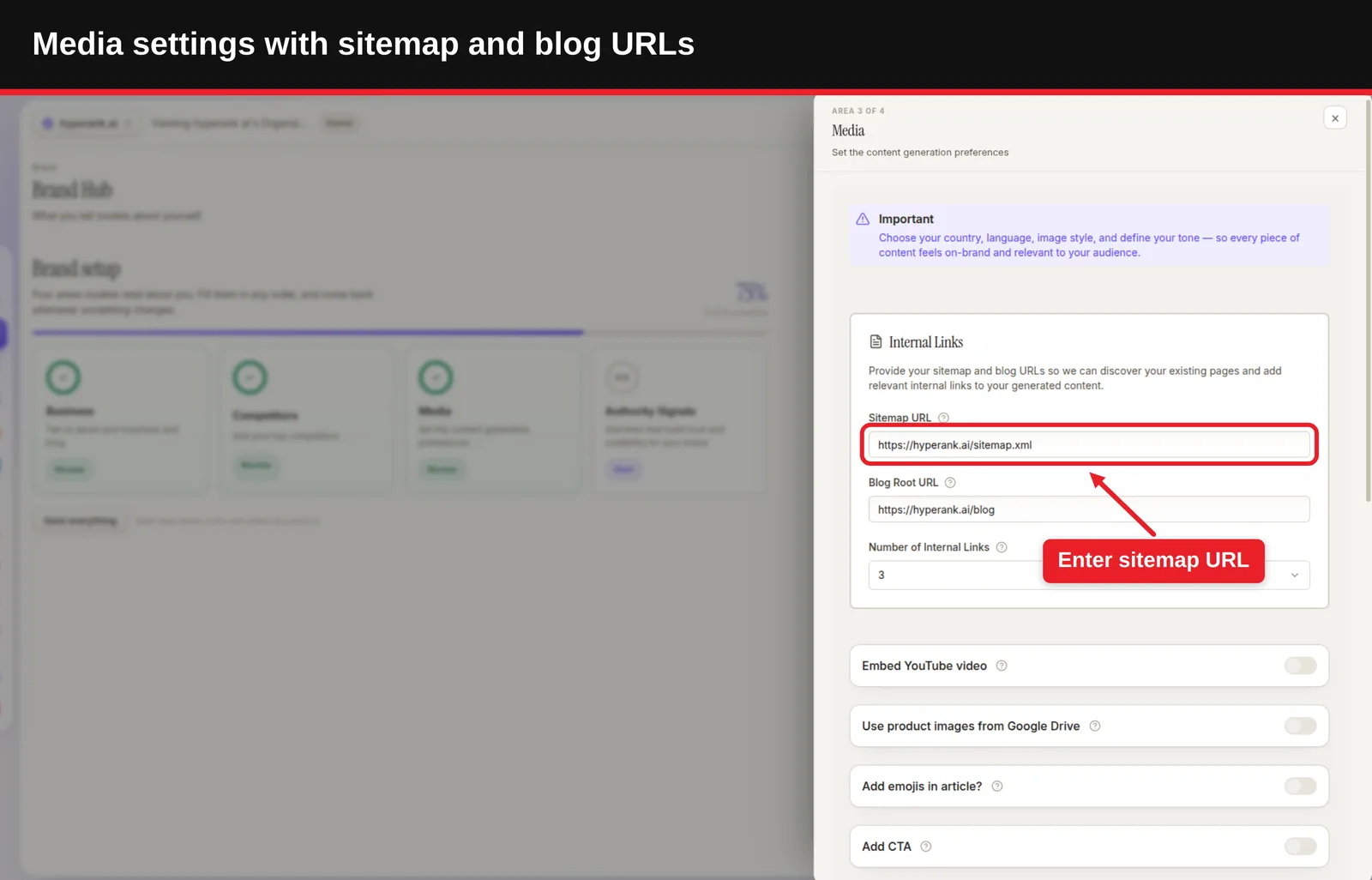
The Media area controls how hyperank-generated articles connect to your site and how they look: internal links, images, video, emojis and calls to action.
How to Do It
- Add your Sitemap URL and Blog Root URL: These let hyperank discover your existing pages and add relevant internal links. Set the number of internal links per article if you want a specific limit.
- Choose an image style: Pick a style for AI-generated article images, add a custom image prompt if you want, and set a brand color.
- Use your own product images (optional): Paste a public Google Drive folder URL so hyperank can select your product images (JPG, PNG, WEBP or GIF) for articles, and use the built-in check to confirm it can access the folder.
- Embed YouTube videos (optional): Add your channel so relevant videos from it can be embedded.
- Decide on emojis: Turn them on only if they suit your brand voice.
- Add a CTA (optional): Turn on Add CTA to append a call-to-action section to every generated article, with a title, subtitle, button label and button URL.
Example CTA
| Field | Example |
|---|---|
| CTA title | Ready to put this into practice? |
| CTA subtitle | Forecast your next reorder in under five minutes. |
| Button label | Start free trial |
| Button URL | https://yourdomain.com/signup |
Common Mistakes
- A private Drive folder: The folder must be publicly shared, or hyperank can't read the images. See Google's guide to sharing Drive files.
- Switching on the CTA without a URL: hyperank requires a button label and URL when Add CTA is on.
What Done Looks Like
Your sitemap and blog URLs are saved, an image style is chosen and any optional extras are set.
Step 5: Add Your Authority Signals
What You're Doing
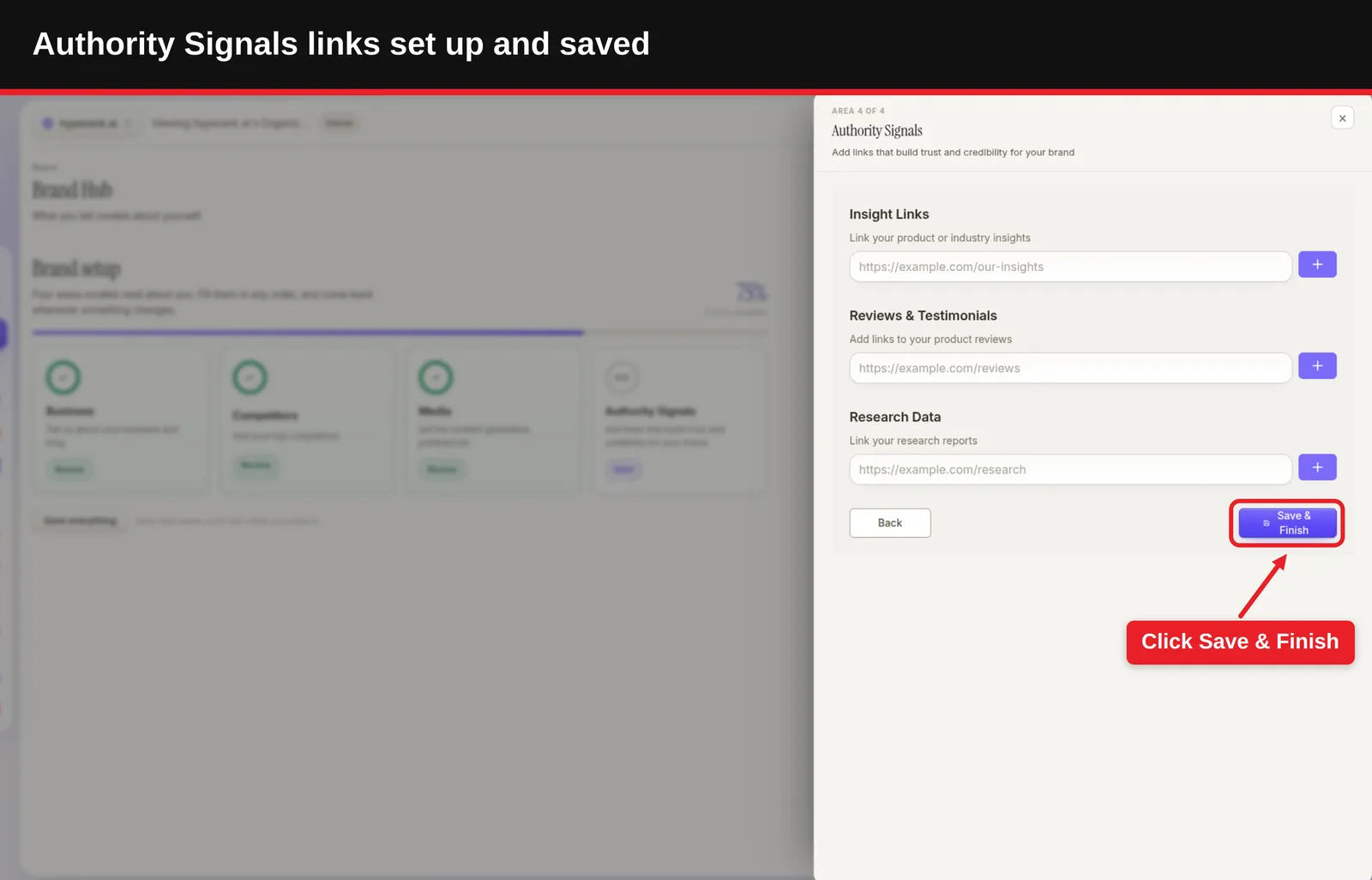
Authority Signals are links that build trust and credibility for your brand. They give hyperank real sources to draw on, so generated content can back up claims instead of making them.
How to Do It
| Signal | What to link | Example |
|---|---|---|
| Insight Links | Your product or industry insights | A guide, benchmark post or methodology page |
| Reviews & Testimonials | Pages with your product reviews | A reviews page or customer stories |
| Research Data | Your research reports | An annual survey or original study |
- Link your best evidence: Choose pages with specific numbers, named customers or original data.
- Keep links live: Replace any that redirect or 404 after a site update.
What Done Looks Like
At least one link is saved in each signal type you have, and the Authority Signals tile shows progress.
What to Do After Setting Up Your Brand Hub
- Phase 1, the first week: Generate a test article and check that it uses your voice, audiences, internal links and CTA; refine the Business area if it doesn't.
- Phase 2, the first month: Compare what AI engines say about you with what your Brand Hub says, and close gaps by publishing content that states your positioning clearly.
- Phase 3, ongoing: Revisit the Brand Hub whenever pricing, positioning, competitors or products change.
Resources You'll Need
| Resource | Role | Status | Price |
|---|---|---|---|
| hyperank Brand Hub | Where you set up your brand | Required | Included with hyperank plans |
| Your sitemap.xml | Lets hyperank find pages for internal links | Recommended | Free; find it with hyperank's sitemap finder |
| Google Drive | Hosts product images for articles | Optional | Free tier available |
| YouTube channel | Source for embedded videos | Optional | Free |
| hyperank AI brand visibility checker | See how AI describes you before and after | Optional | Free |
Troubleshooting Common Issues
Generated articles sound generic
Likely cause: A vague business description or value proposition. Fix: Rewrite both with specifics: who you serve, what you do and what's different.
Product images don't appear
Likely cause: The Drive folder isn't public, or the files are in an unsupported format. Fix: Share the folder publicly, use JPG, PNG, WEBP or GIF, and run the access check again.
Internal links are missing or wrong
Likely cause: The sitemap or blog URL is wrong or outdated. Fix: Update the Sitemap URL and Blog Root URL in Media.
Competitor suggestions don't fit
Likely cause: The business description is too broad. Fix: Tighten the description, then remove off-target suggestions and add rivals by domain.
Conclusion
Key Takeaways
- Outcome: How to Set Up Your Hyperank Brand Hub comes down to four areas: Business, Competitors, Media and Authority Signals.
- Key insight: Specific descriptions, real competitors and live evidence links make every generated article and comparison more accurate.
- Next action: Open Brand Hub, start with Business, then generate one test article to check the result.
FAQ
How do I set up my hyperank Brand Hub?
Open your site in hyperank and choose Brand Hub in the sidebar. Complete its four areas in any order: Business (name, description, value proposition, audiences, industries, voice, messaging, country and language), Competitors (one to ten domains, which hyperank can suggest with AI), Media (sitemap and blog URLs, internal links, image style, optional Drive product images, YouTube and a CTA) and Authority Signals (insight, review and research links). The progress bar shows what's left.
What is the hyperank Brand Hub?
It's the place where you tell hyperank about your brand, described in the app as "what you tell models about yourself", which its content and AI visibility features draw on.
How long does it take to set up?
About 20-30 minutes for a first pass. You can fill the areas in any order and come back later.
How many competitors can I add?
Between one and ten. hyperank can find competitors with AI, and you can add others by domain.
Can I use my own product images?
Yes. Paste a public Google Drive folder URL in the Media area, and hyperank can select your product images for articles.
Do I have to fill every field?
No. Each area shows its progress, and the core fields, such as your business name and description, matter most.
Can I change my Brand Hub later?
Yes. Update it whenever your positioning, products, competitors or links change.
Methodology: Steps and field names reflect the hyperank Brand Hub as it appears in the app in October 2026. Labels may change as the product evolves; follow the on-screen prompts if anything differs.
See where your brand stands
How six AI engines describe you, next to your competitors. About two minutes.