How to Remove Ads From Your Android TV and Make It Look Like an Apple TV (No Root, Using Claude Code)
Discover how to remove ads from Android TV and transform it to resemble an Apple TV with our step-by-step guide using Claude Code, no root required.
how to remove ads from Android TV | Updated October 2026 | hyperank Editorial Team | 15 minutes to an afternoon | Beginner
What You'll Learn
To remove ads from your Android TV without rooting it, turn on developer options and network debugging on the TV, then use the free, open-source cleanyourtv project to disable the manufacturer's ad, telemetry and bloat packages over Wi-Fi and install a clean, Apple TV-style launcher. Nothing is uninstalled: every package is switched off with Android's own pm disable-user command, and a one-line restore script puts everything back. This guide, How to Remove Ads From Your Android TV and Make It Look Like an Apple TV (No Root, Using Claude Code), walks through the whole process, with Claude Code doing the work or by hand with the project's scripts.
- Understand the hack: What gets disabled, what gets installed and why nothing is permanent.
- Check your TV: Which brands work, which don't and where to find your model.
- Run it: Enable debugging, paste the prompt into Claude Code, debloat and install the launcher.
- Undo it: Restore every package and the stock home screen in one command.
Prerequisites: An Android TV or Google TV, a computer on the same Wi-Fi network, and either Claude Code (or a similar coding assistant with shell access) or Python 3.
Why Removing Android TV Ads Matters in 2026
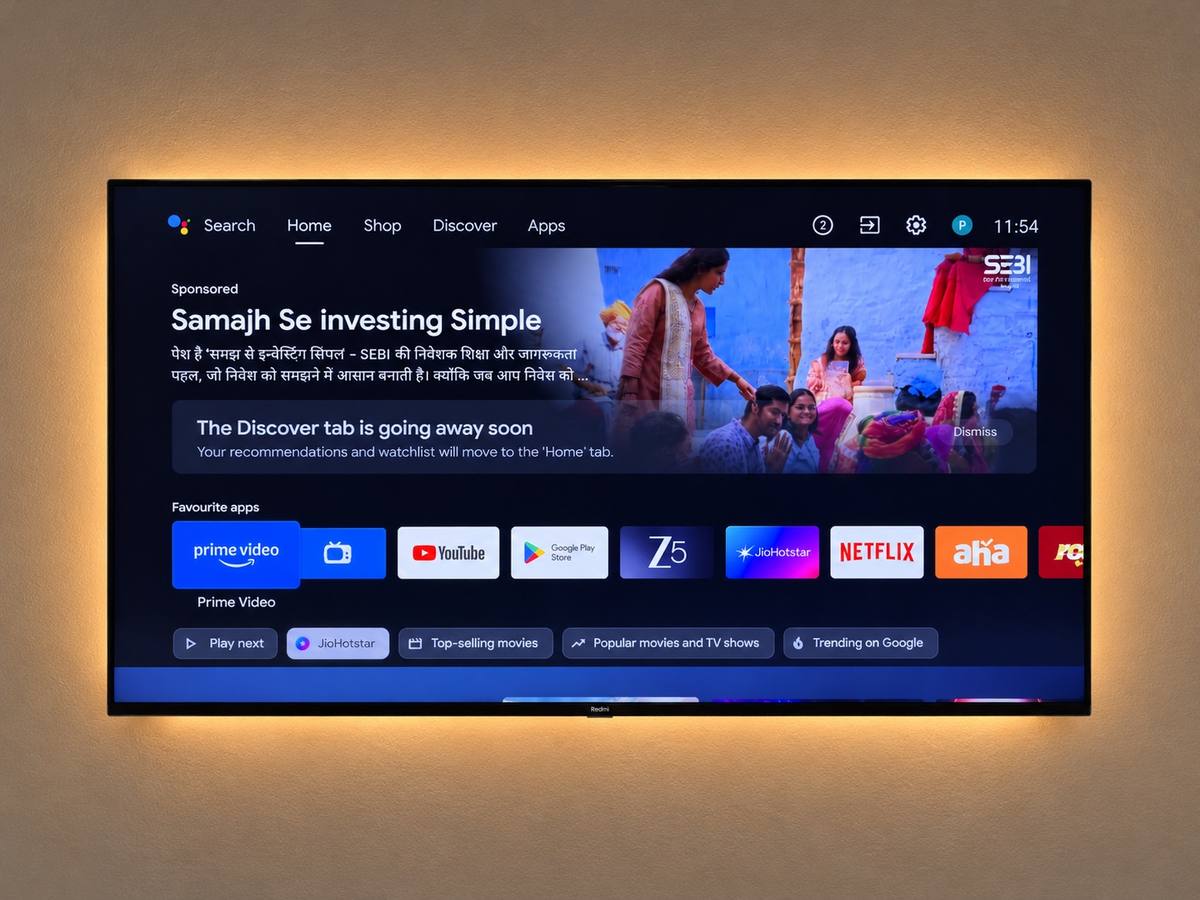
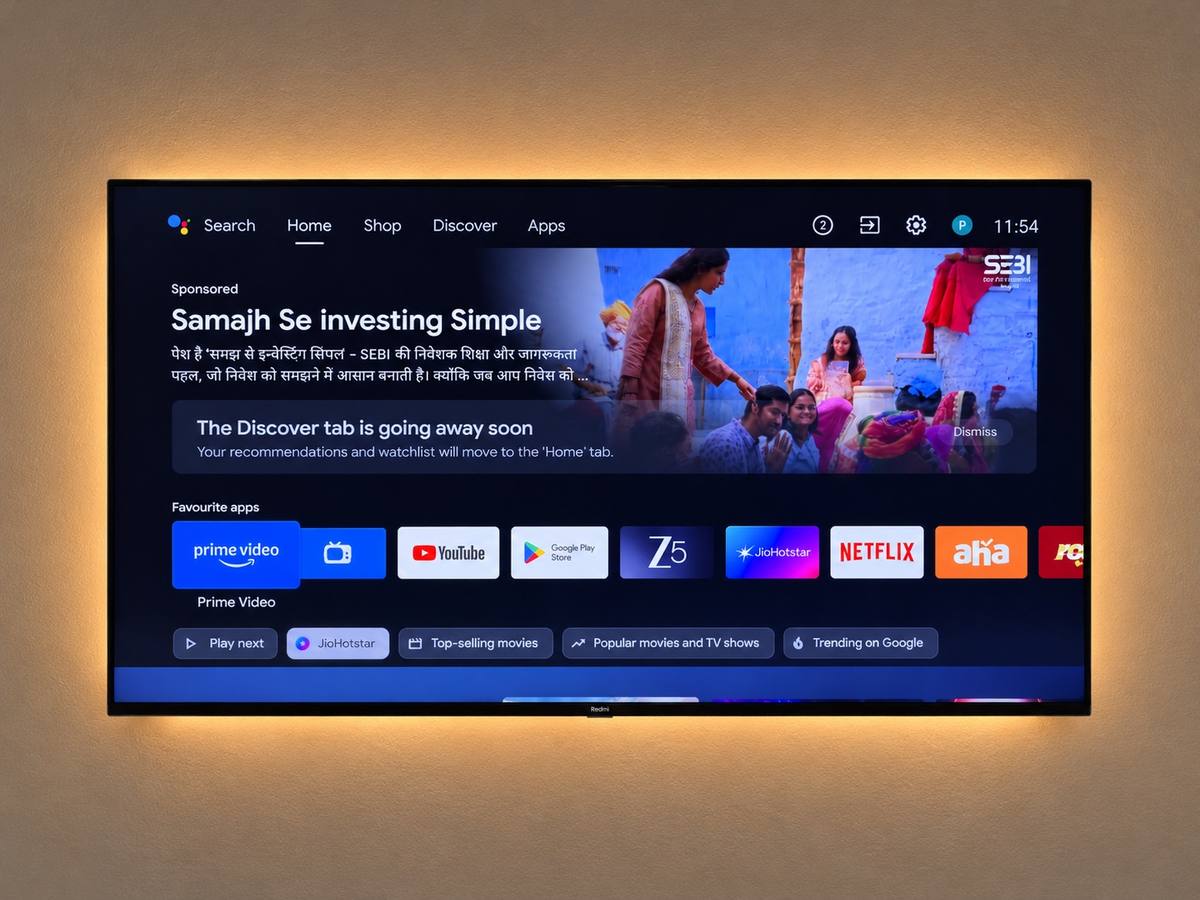
Many Android TVs now open to a home screen built around promotions: sponsored rows, recommended shows from partner apps and banners that load before you can reach Netflix or YouTube. On budget sets the manufacturer's own content layer, such as Xiaomi's PatchWall, sits on top of Google's launcher and adds its own analytics and background services. The result is a TV that feels slower every month and shows you ads on a screen you paid for.
Cleaning that up used to mean rooting the TV or installing a third-party launcher with its own ads. cleanyourtv instead uses the Android Debug Bridge (ADB), the developer connection built into every Android TV, to switch packages off rather than delete them, and builds its own small launcher. Its prompt lets Claude Code inspect your specific TV and ask before touching anything you might use.
Key Takeaway: You can get an ad-free Android TV home screen without root, warranty-voiding firmware or a paid launcher.
The Process at a Glance
Step | Action | Time | Outcome |
|---|---|---|---|
1 | Understand what the hack does | 5 minutes | Know what's disabled and installed |
2 | Read the story and the repo | 5 minutes | Know where the tools come from |
3 | Check your TV is supported | 5 minutes | Confirm Android TV or Google TV |
4 | Gather what you need | 10 minutes | Computer, Wi-Fi, Claude Code or Python |
5 | Enable developer options and debugging | 5 minutes | TV accepts ADB connections |
6 | Paste the prompt into Claude Code | 5 minutes | Assistant connected to your TV |
7 | Find and disable the bloat | 15-60 minutes | Ads and telemetry switched off |
8 | Install the new launcher | 15-60 minutes | Apple TV-style home screen |
9 | Or do it by hand | 30-90 minutes | Same result without AI |
10 | Know how to undo it | 5 minutes | One-line restore ready |
11 | Understand the risks | 5 minutes | Safe choices about what to keep |
Total time: About 15 minutes on a well-tested model, up to an afternoon on an unfamiliar one.
Step 1: Understand What This Hack Actually Does
What You're Doing
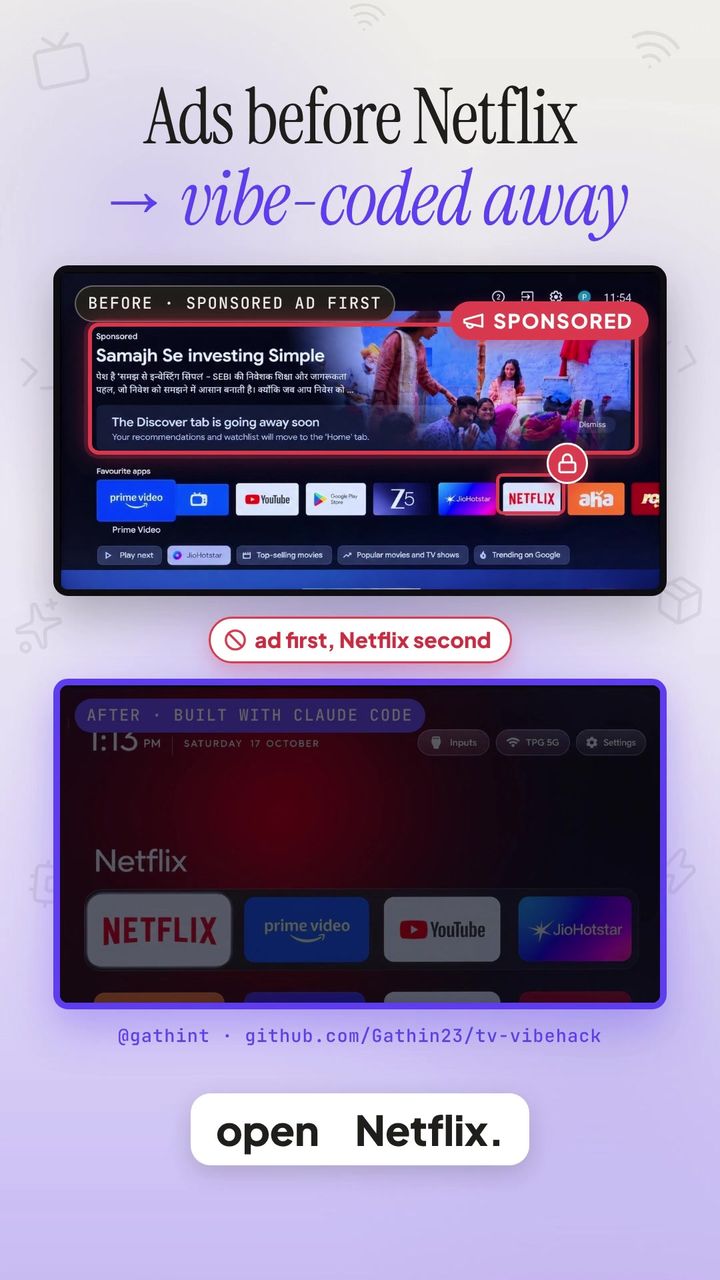
Before you change anything, it helps to know exactly what cleanyourtv does to your TV, and what it doesn't. Its README sums it up: "No root, no cable, nothing uninstalled, and a one-line restore if you change your mind."
How It Works
- Disables ads, telemetry and bloat: Manufacturer analytics, content and promo rows, background services and preloaded apps are switched off with
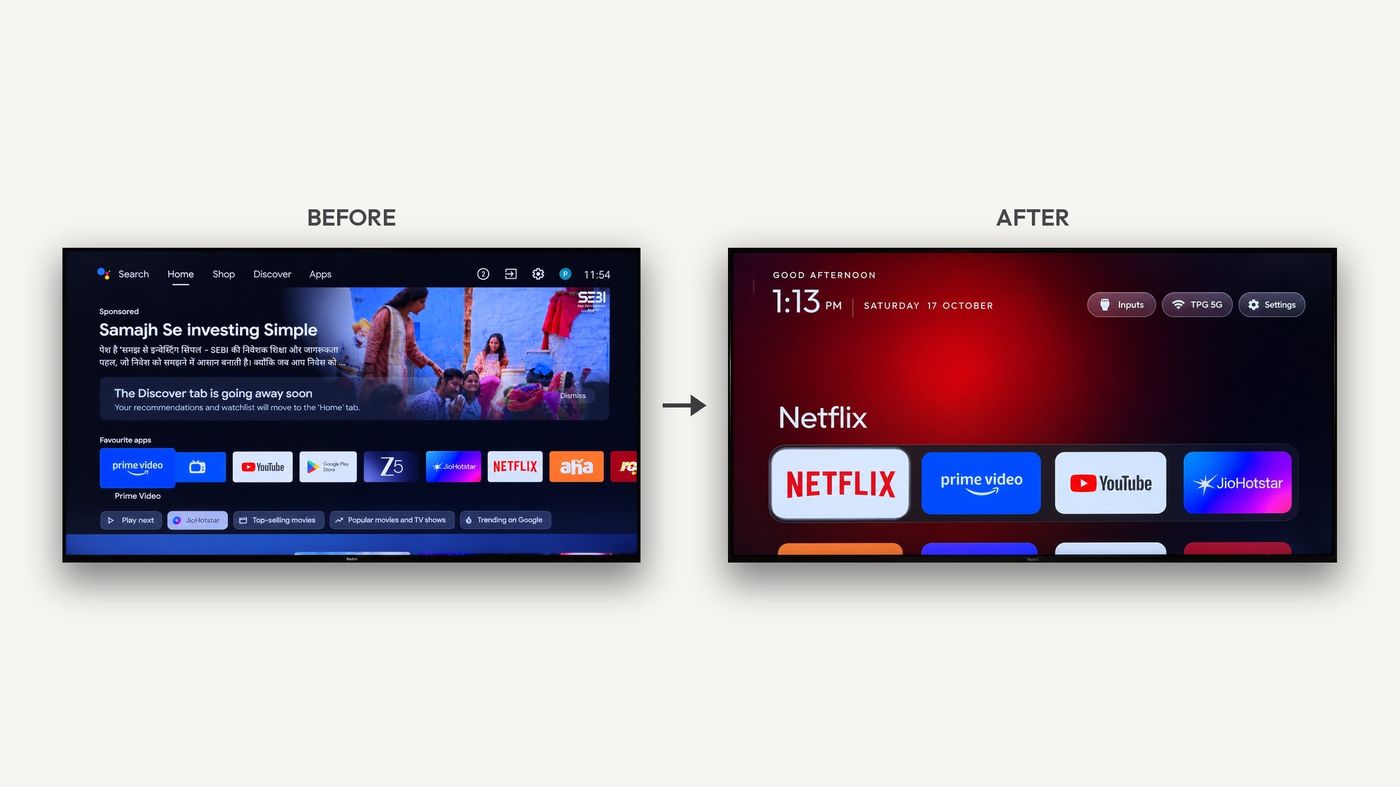
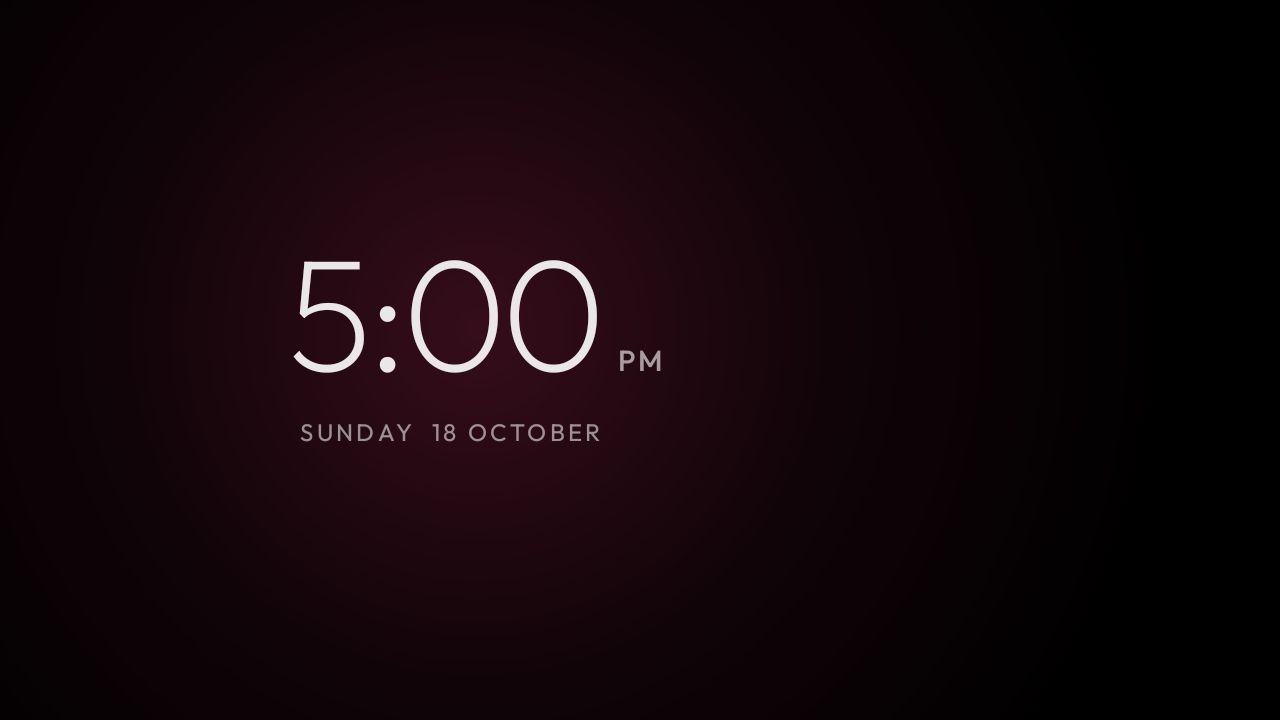
pm disable-user --user 0. The packages stay on the TV and can be re-enabled. - Installs a clean launcher: A small native Android TV launcher, about 280 KB installed, becomes the default home screen, with an Apple TV-style dock, a "top shelf" and an app grid.
- Keeps a way back: A backup of your package list is saved first, and
tools/restore.shre-enables everything and restores the stock launcher.
What It Doesn't Do
- No rooting or firmware changes: It only uses commands Android allows over ADB.
- No uninstalling system apps: The prompt explicitly says never to uninstall system packages.
- No YouTube ad blocking: It removes the TV's own ads; an optional ad-blocking DNS setting is offered, but the prompt notes it doesn't block YouTube ads.
What Done Looks Like
You understand that the hack switches things off and adds a launcher, and that it can all be reversed.
Step 2: Know the Story Behind It
What You're Doing
cleanyourtv started as one developer's weekend fix, and knowing where it came from helps you trust what you're running and find help if you get stuck.
How It Started
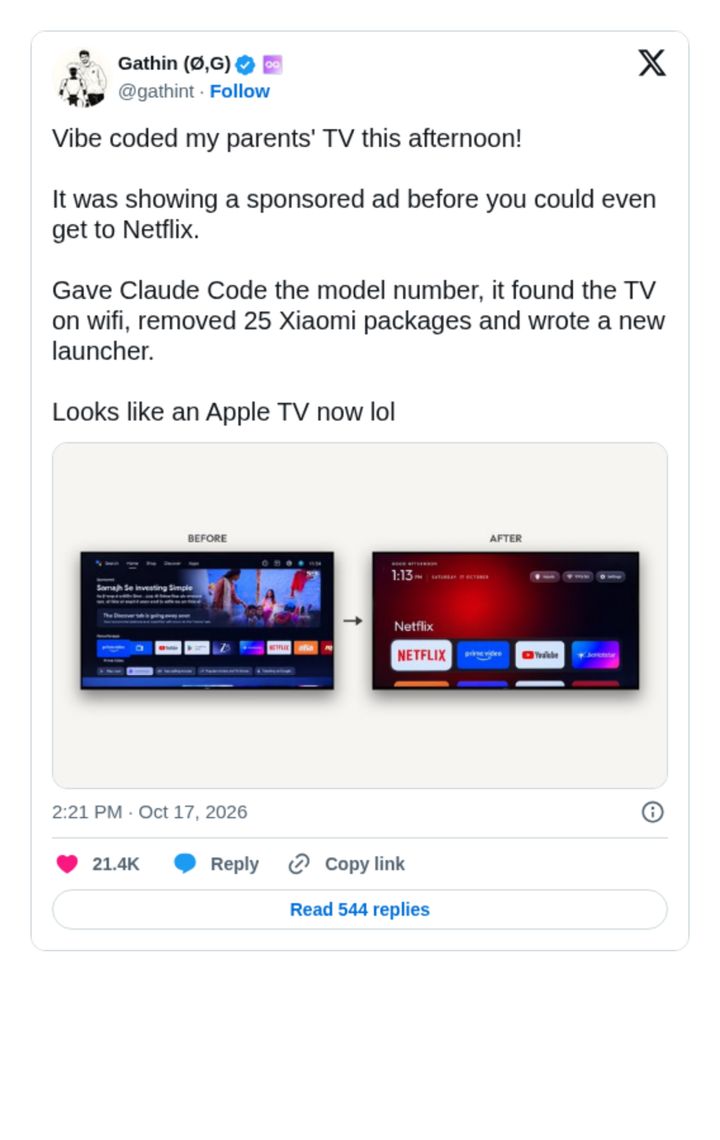
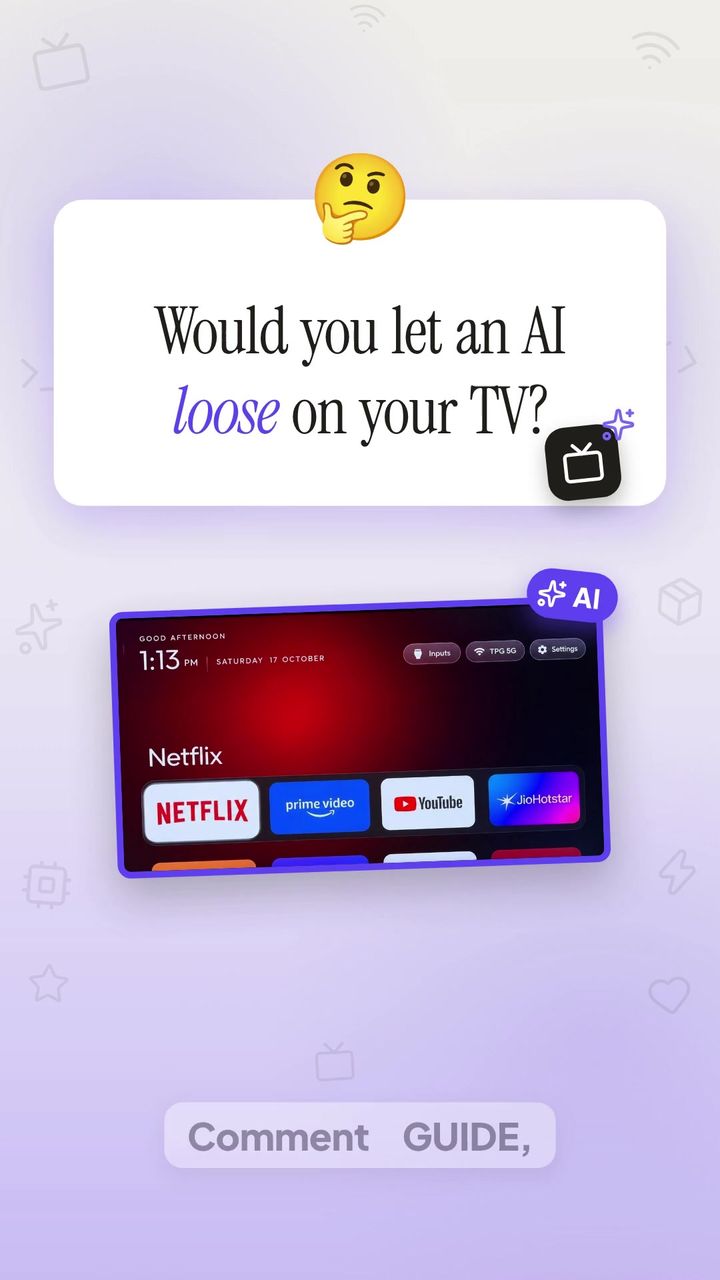
- A parents' TV full of ads: Developer @gathint (Gathin on GitHub) used Claude Code to clean up his parents' Xiaomi Mi TV, which showed ads before you could open an app, and posted the before-and-after. The post spread quickly.
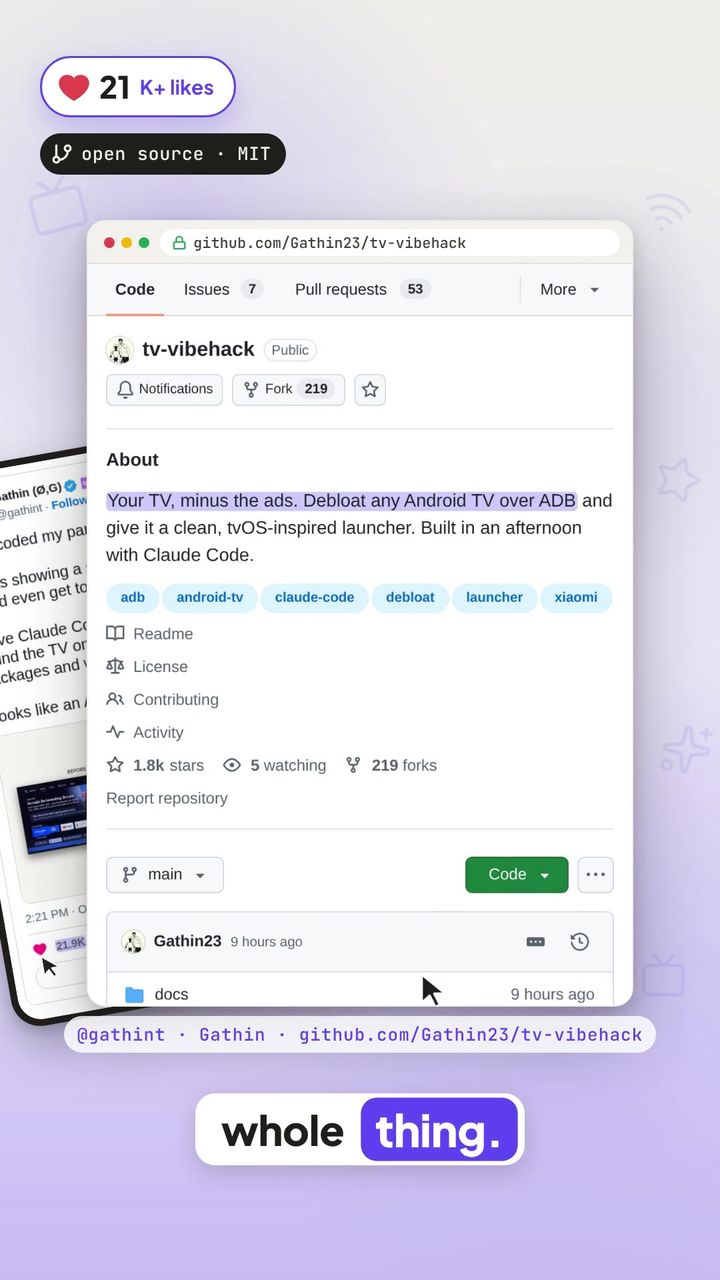
- Open-sourced: He published the prompt, tools and launcher on GitHub as Gathin23/cleanyourtv, MIT-licensed. The repository was called "tv-vibehack" until October 19, 2026, and old links still redirect.
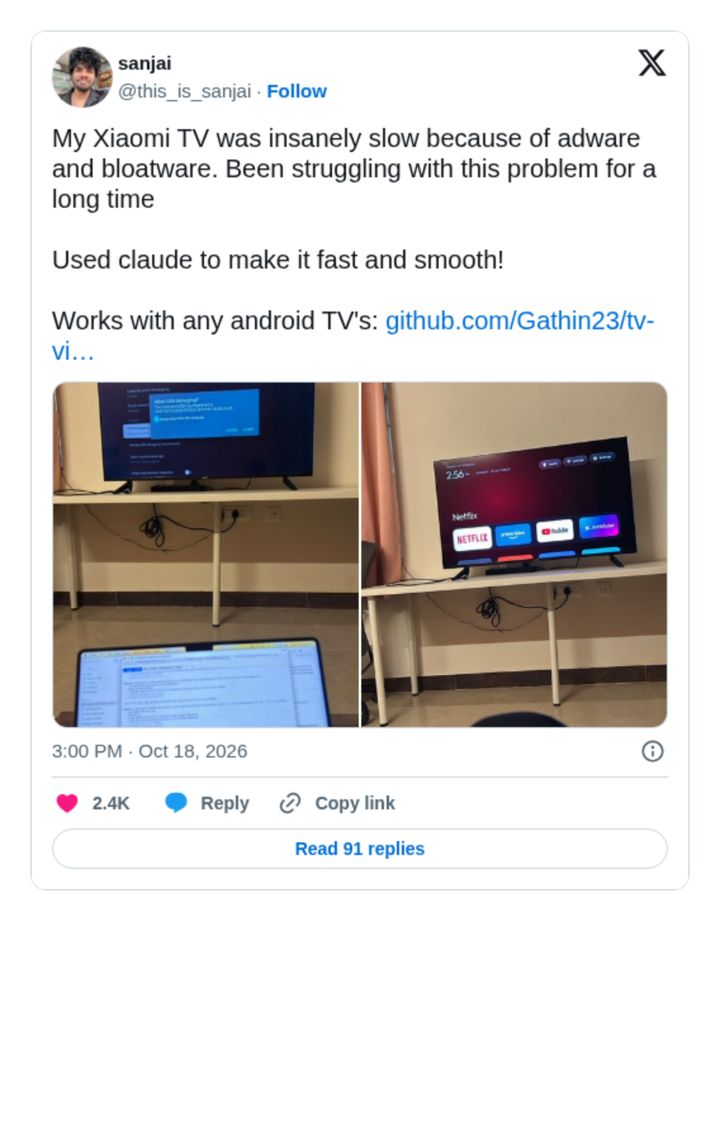
- Others followed: Developers began running it on their own sets; @this_is_sanjai shared fixing a laggy Xiaomi TV the same way.
- A growing list of tested TVs: The repo's
examples/folder now holds debloat lists for 54 tested models across 23 brands, and the project has around 4,700 GitHub stars.
Real talk: most of us have a relative with a TV like this. The appeal of cleanyourtv is that it turns "you'd need to root it" into an afternoon project.
What Done Looks Like
You know the official repo and where the tested-model lists live.
Step 3: Check Whether It Will Work on Your TV
What You're Doing
cleanyourtv only works on TVs that run Android TV or Google TV, so check your set's operating system before you start.
How to Check
Platform | Works? | Examples |
|---|---|---|
Android TV / Google TV | Yes | Xiaomi and Redmi, TCL, Hisense, Sony Bravia, OnePlus, Philips, Nvidia Shield, Chromecast with Google TV |
Amazon Fire TV | Partly | The README says debloat only; the prompt advises it won't fully work |
Samsung (Tizen) | No | Not Android |
LG (webOS) | No | Not Android |
- Look in Settings: If your TV has Settings → Device Preferences → About with an "Android TV OS" version, it's a candidate.
- Find your model in examples/: The repo lists tested sets such as the Xiaomi Mi TV 4A, Xiaomi Mi Box S, TCL C725, Sony KD-65X80J, Hisense A4 and Nvidia Shield TV Pro.
- Check the header notes: Each example file starts with notes about quirks; some China-market TCL sets refuse third-party launchers, so only the debloat half works.
What Done Looks Like
You've confirmed your TV runs Android TV or Google TV and, ideally, found a matching example list.
Step 4: Gather What You Need
What You're Doing
The setup is light: no cables, no special hardware, just a computer and a coding assistant or Python.
How to Do It
Item | Why | Notes |
|---|---|---|
A computer on the same Wi-Fi as the TV | ADB connects over the network | Mac, Windows or Linux |
Claude Code or a similar assistant with shell access | Runs the prompt and the commands | Optional if you do it by hand |
Python 3 | Runs | Needed for the scripts |
JDK 17 and Android SDK platform 34 | Builds the launcher | Only for the launcher step |
A clone of the repo | Lets the assistant reuse | Recommended |
Tip: mention the clone to the assistant so it reuses the existing tools and launcher, and note your TV's IP address from Settings → Network in case discovery fails.
What Done Looks Like
Your computer is on the same Wi-Fi as the TV, with the repo cloned and Claude Code or Python ready.
Step 5: Turn On Developer Options and USB Debugging on the TV
What You're Doing
Developer options unlock the ADB connection the tools use. It's a standard Android setting, not a hack.
How to Do It
- Open About: Go to Settings → Device Preferences → About.
- Unlock developer options: Highlight "Build" and press OK on the remote seven times until a message says you're a developer.
- Open developer options: Go back to Device Preferences → Developer options.
- Enable debugging: Turn on USB debugging, and Network or ADB debugging if your TV shows it.
- Keep the TV on: It needs to stay awake for the connection.
Common Mistakes
- Forgetting USB devices: PROMPT.md warns that some boxes cut power to their USB port while USB debugging is on, so a USB speaker or drive goes dead until you switch debugging off again.
What Done Looks Like
Developer options shows USB debugging (and network debugging, if available) switched on.
Step 6: Paste the Prompt Into Claude Code and Add Your TV Model
What You're Doing
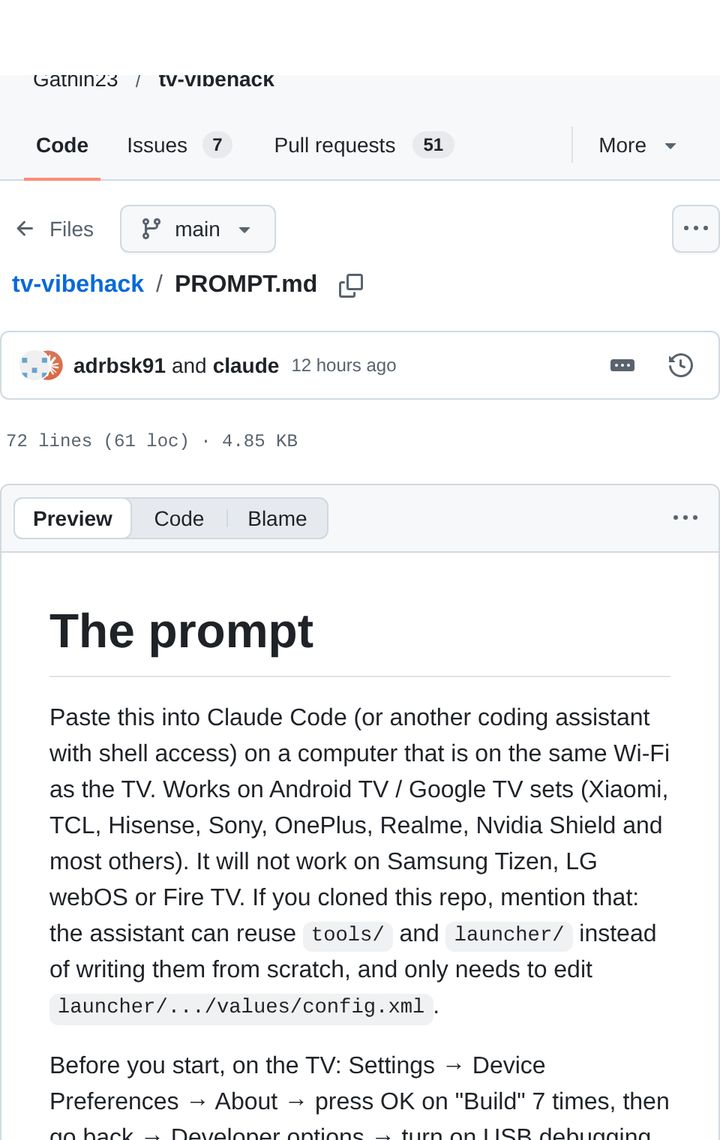
The heart of cleanyourtv is PROMPT.md, a detailed set of instructions that tells the assistant how to connect, back up, debloat and build the launcher safely.
How to Do It
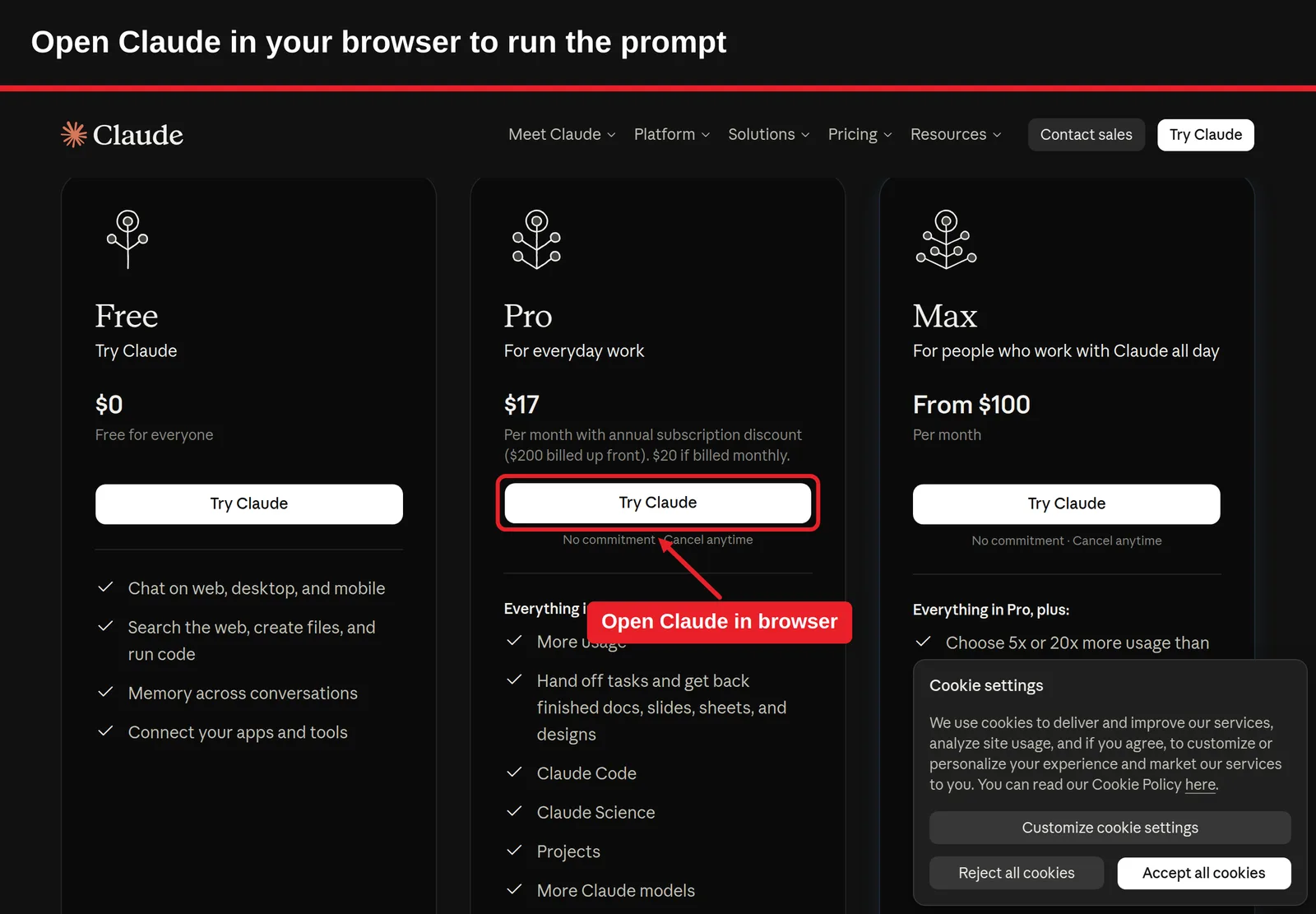
- Open Claude Code in the repo folder on your computer.
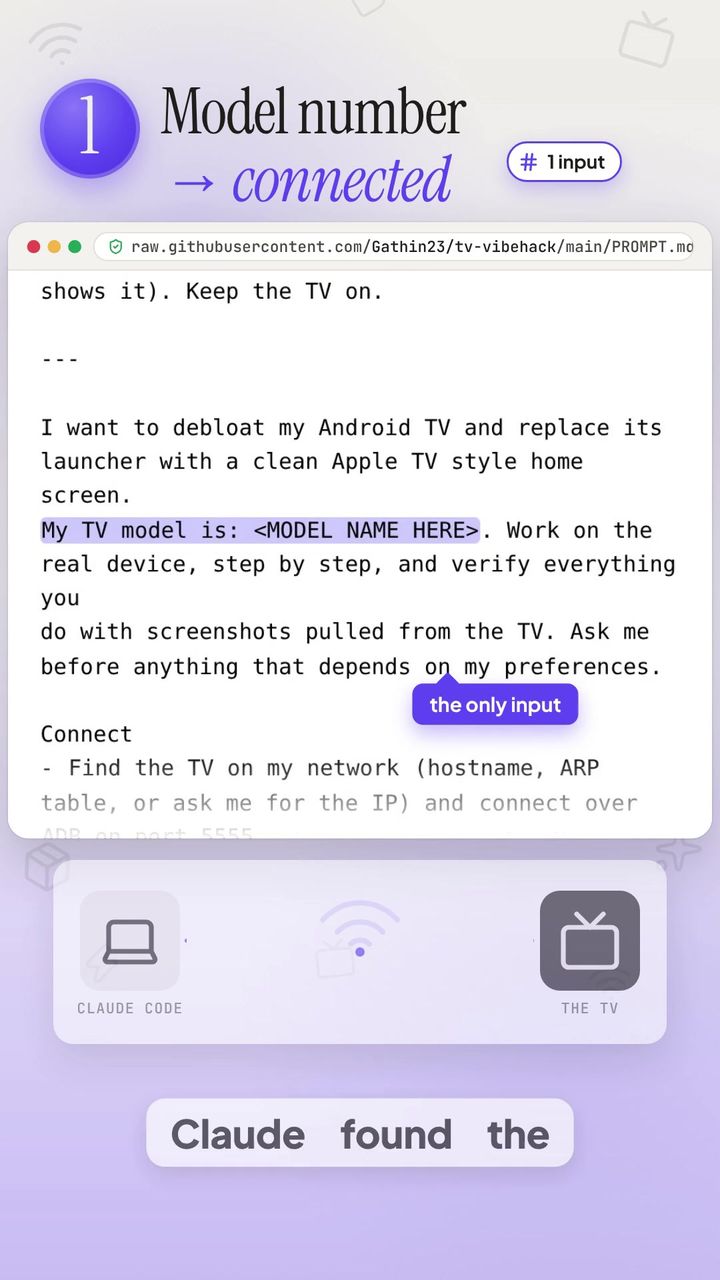
- Paste the prompt from PROMPT.md and replace the placeholder with your TV model, for example "Xiaomi Mi TV 4A".
- Let it find the TV: It looks for the TV on your network and connects over ADB on port 5555, or asks for the IP.
- Accept the prompt on the TV: When "Allow USB debugging?" appears on screen, choose Allow.
- Answer its questions: It asks which apps you use, which four go in the dock and in what order, and whether you use the voice assistant, Chromecast or firmware updates.
The prompt also tells the assistant to back up the package list and settings before changing anything, verify each step with screenshots from the TV, and check unclear packages with dumpsys package before asking you.
What Done Looks Like
Claude Code is connected to the TV, has taken a backup and knows your app preferences.
Step 7: Let It Find and Disable the Bloat
What You're Doing
Now the assistant sorts every installed package and switches off the ones that serve ads, track you or slow the TV down, in small, checked batches.
How It Works
- Sort the packages: Into manufacturer telemetry and analytics, manufacturer content and ad services, unneeded background services, preloaded apps and streaming apps.
- Disable in small batches: One
pmcommand per shell call, with screenshots between batches, because a batch can take something load-bearing with it. - Protect the essentials: The prompt forbids disabling the TV app and HDMI/tuner services, the input menu, remote and Bluetooth pairing, the on-screen keyboard, Google Play Store and Play Services.
- Ask about personal apps: Streaming apps, voice assistant, Chromecast, Miracast and the update service are only disabled if you don't tick them.
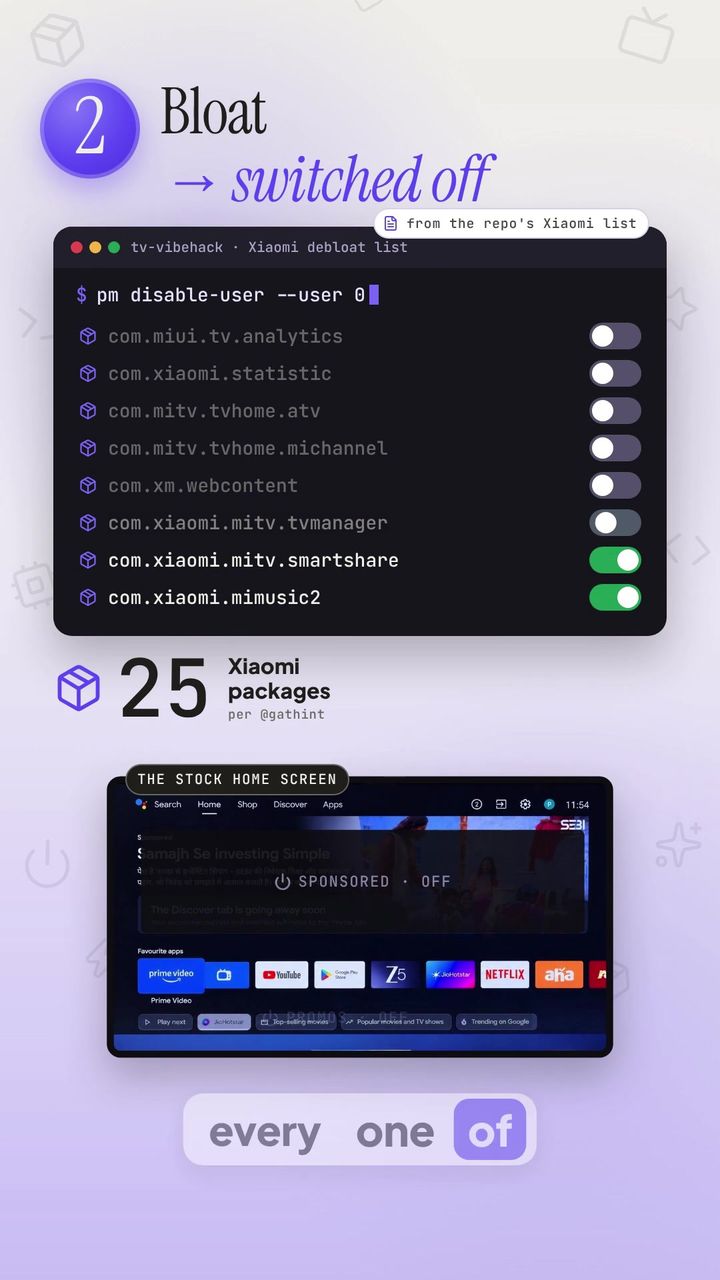
Example: the Mi TV 4A list
Group | Packages disabled | Examples |
|---|---|---|
Xiaomi telemetry | 2 |
|
PatchWall and promo rows | 5 |
|
Xiaomi background services | 6 | TV Manager cleaner, Mi cast, update service, Alexa bridge |
Preloaded apps | 5 | Mi Music, Play Games, Google Duo, a demo app |
Stock launcher and recommendations | 3 |
|
The published examples/xiaomi-mi-tv-4a/debloat.txt list disables 21 packages; a live run may switch off a few more depending on what's installed. The file notes that Mi cast is disabled while Chromecast still works, and that the update service can be re-enabled to check for firmware.
Optional: ad-blocking DNS
On Android 9 and newer, the assistant can offer Private DNS with an ad-blocking resolver. It's optional, it doesn't block YouTube ads, and it can be undone by setting Private DNS back to automatic.
What Done Looks Like
The ad rows and promo services are gone, your chosen apps still open and HDMI inputs still work.
Step 8: Install the New Launcher
What You're Doing
With the bloat switched off, the assistant builds and installs a small native launcher and makes it your home screen.
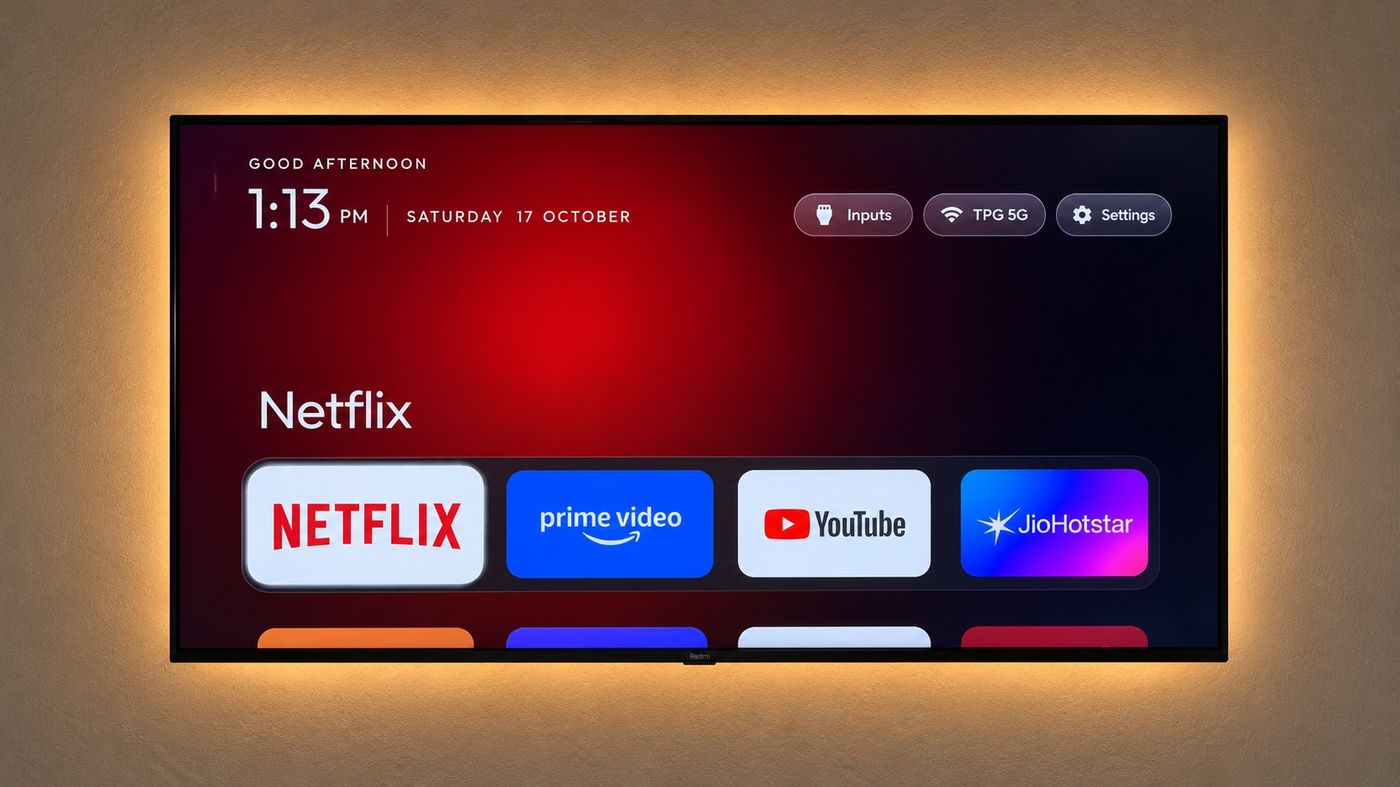
What You Get
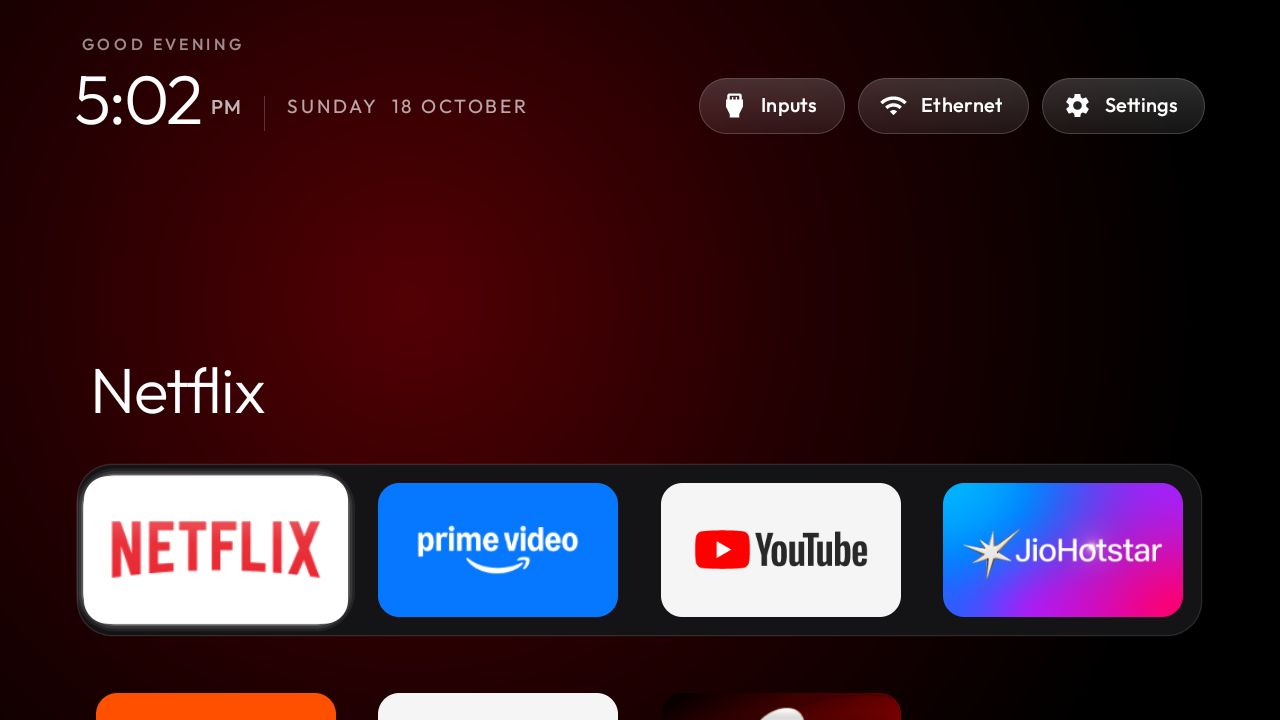
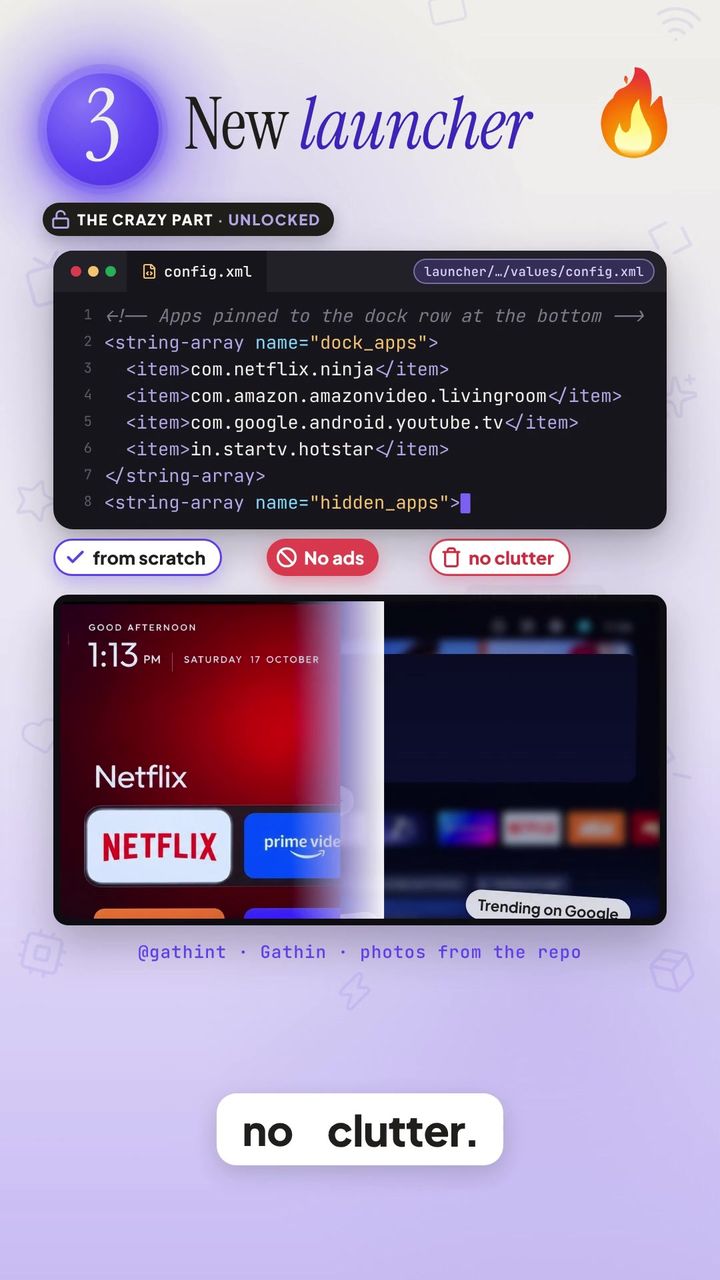
- Pitch-black home with a four-app dock: Your chosen apps in a lighter rounded band at the bottom.
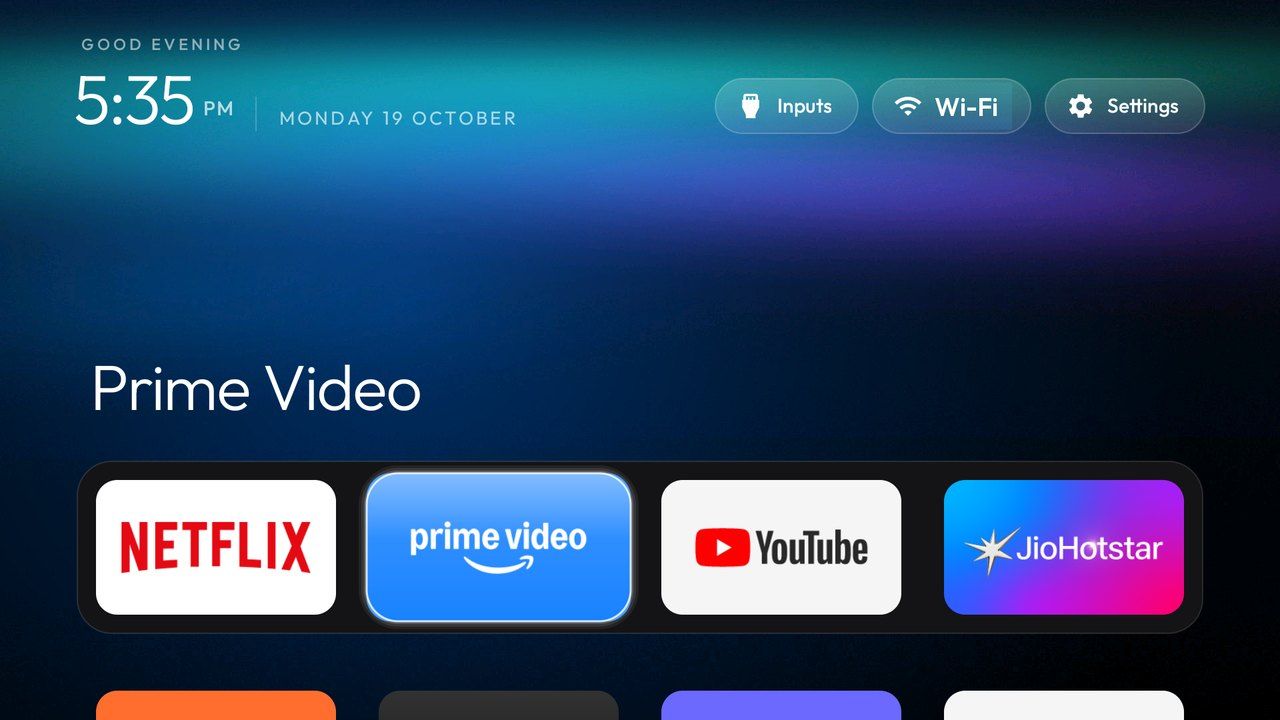
- Top shelf with ambient glow: The focused app's name in large type, with a glow sampled from its banner.
- App grid: Everything else in a four-column grid that scrolls up when you press Down.
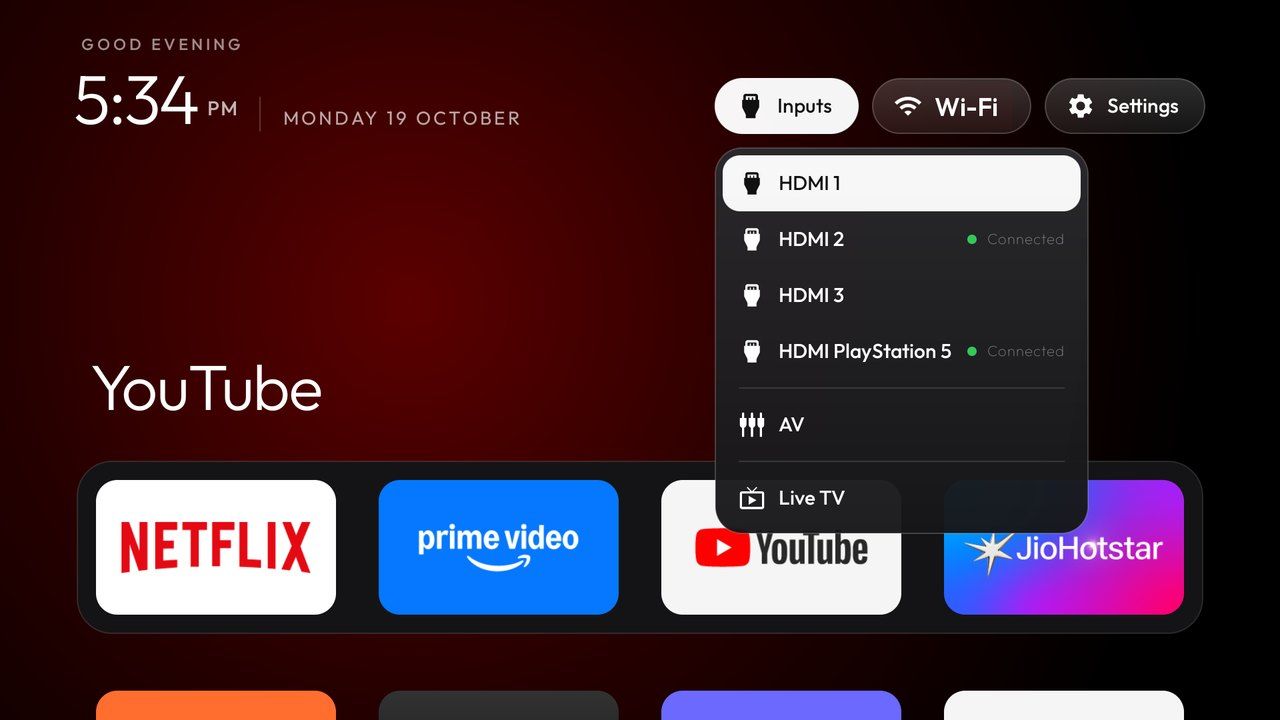
- Quick buttons: Frosted Inputs, Wi-Fi and Settings buttons; Inputs lists HDMI ports, AV and Live TV.
- Clock screensaver: A large clock that drifts slowly to prevent burn-in.
How It's Installed
- Check the TV accepts APKs: Some China-market sets reject all sideloads or any launcher without the manufacturer's signature; the prompt says to stop at the debloat half if so.
- Build and install:
launcher/build-and-install.shbuilds the launcher and installs it over ADB. - Set it as home first: The README's key warning is to disable the stock launcher only after the new one is installed and running.
- Watch for Google TV's setup wizard: On Google TV, the setup wizard can take over or crash-loop if the stock launcher is disabled in the wrong order; the matching example file explains the sequence.
What Done Looks Like
Pressing Home shows the new black launcher with your four apps in the dock.
Step 9: Prefer to Do It by Hand? (No AI)
What You're Doing
You don't need an AI assistant: the repo's scripts do the same job if your TV has an example list.
How to Do It
- Set up Python: Create a virtual environment for
tools/tv.py, the repo's pure-Python ADB client. It also works around macOS blockingadb connectunder Local Network privacy. - Pick your list: Copy the closest file from
examples/and comment out any line for an app you want to keep. - Disable: Run
TV_HOST=<tv ip> tools/disable.sh examples/<your-model>/debloat.txt. - Build the launcher: Run
launcher/build-and-install.sh, then set it as home before disabling the stock launcher. - On Windows: Use the PowerShell versions of the scripts in the repo.
What Done Looks Like
The same result as the AI route, using the tested list for your model.
Step 10: Know How to Undo Everything
What You're Doing
Because nothing is uninstalled, going back to the stock TV is one command.
How to Do It
- Run the restore script:
TV_HOST=<tv ip> tools/restore.sh examples/<your-model>/debloat.txt - What it does: Re-enables every package in the list, re-enables the stock launcher, sets it back as home and resets animation scales.
- Custom stock launcher: If your TV's original launcher isn't Google's, pass its package name as a second argument.
- Undo DNS: If you set ad-blocking DNS, set Private DNS back to automatic.
- Switch debugging off: Turn off USB and network debugging when you're finished.
What Done Looks Like
The TV is back to its original home screen with every package re-enabled.
Step 11: Is It Safe? Risks and Limits
What You're Doing
cleanyourtv is designed to be reversible, but you're still changing how your TV works, so know the limits before you start.
Risk | How it's handled | What you should do |
|---|---|---|
Disabling something important | Prompt protects TV, input, remote, keyboard and Play services | Answer the checklist honestly |
Losing a feature you use | Assistant asks about voice, Chromecast and updates | Keep anything you rely on |
Firmware updates | Updates may re-enable packages | Re-run the debloat after updates |
Missed security fixes | Disabling the update service stops firmware checks | Re-enable it periodically |
Warranty and support | No root or firmware changes | Still, it's at your own risk |
What Done Looks Like
You've chosen what to keep, saved the restore command and accepted that it's at your own risk.
What to Do After You've Cleaned Your TV
- Phase 1, the first week: Use the TV normally and note anything that stopped working; re-enable it with the restore script or a single
pm enable. - Phase 2, after firmware updates: Check whether ad rows came back and re-run the debloat list.
- Phase 3, share it: If your model wasn't in
examples/, contribute your list to the repo.
hyperank helps brands see what AI says about them by aggregating daily insights from six major AI engines and capturing the qualitative answers and trends, not just rankings. hyperank believes understanding and influencing how AI engines represent your brand is now critical, and it gives brands and agencies transparency and control over that AI-driven reputation.
Resources You'll Need
Resource | Role | Status | Price |
|---|---|---|---|
cleanyourtv on GitHub | Prompt, tools, launcher and tested lists | Required | Free (MIT) |
Claude Code | Runs the prompt against your TV | Recommended | Requires a Claude plan |
Python 3 | Runs the ADB client and scripts | Required | Free |
JDK 17 and Android SDK 34 | Builds the launcher | Required for the launcher | Free |
hyperank | Track what AI engines say about your brand | Optional | Plans quoted per team |
Troubleshooting Common Issues
The computer can't connect to the TV
Likely cause: Debugging is off, the TV is asleep or macOS is blocking local network access. Fix: Re-check developer options, keep the TV on and use tools/tv.py instead of adb on macOS.
The launcher won't install
Likely cause: The TV rejects sideloaded or HOME-category apps. Fix: Check your model's example header; on these sets, keep the debloat and stop retrying installs.
Conclusion
Key Takeaways
- Outcome: cleanyourtv removes ads from Android TV by disabling bloat packages over Wi-Fi and installing an Apple TV-style launcher, with no root.
- Key insight: Nothing is uninstalled, and
tools/restore.shundoes everything, so the risk is low if you keep what you use. - Next action: Find your model in the cleanyourtv repo, turn on developer options and paste PROMPT.md into Claude Code.
FAQ
How do I remove ads from my Android TV and make it look like an Apple TV without root, using Claude Code?
Turn on developer options and USB or network debugging on the TV, clone the cleanyourtv repo on a computer on the same Wi-Fi, and paste its PROMPT.md into Claude Code with your TV model. It connects over ADB, backs up your settings, disables ad, telemetry and bloat packages with pm disable-user, and installs a clean Apple TV-style launcher. Nothing is uninstalled, and tools/restore.sh puts everything back.
Do I need to root my Android TV?
No. cleanyourtv uses standard ADB commands available on any Android TV with developer options enabled.
Will Netflix and YouTube still work?
Yes. You choose which streaming apps to keep and which four go in the dock. Note that it doesn't remove ads inside YouTube.
Does it work on Samsung or LG TVs?
No. Samsung uses Tizen and LG uses webOS, which aren't Android. Amazon Fire TV works only partly, for debloating.
Can I do it without Claude Code?
Yes. Use tools/disable.sh with your model's list from examples/, then build the launcher with the repo's script; PowerShell versions exist for Windows.
How do I undo it?
Run tools/restore.sh with the same list. It re-enables every package and restores the stock launcher.
Methodology: Steps, file names, warnings and tested-model counts come from the cleanyourtv repository's README, PROMPT.md, examples and scripts, checked on October 20, 2026. Behavior varies by TV model and firmware; follow your model's example notes, and proceed at your own risk.
See where your brand stands
How six AI engines describe you, next to your competitors. About two minutes.