
WordPress XML Sitemap: Where to Find It and How to Set It Up
Discover how to find and set up your wordpress sitemap xml with our step-by-step guide, ensuring better indexing for your website.
wordpress sitemap xml | Updated October 2026 | hyperank Editorial Team | 15 to 30 minutes | Easy
Your WordPress sitemap XML file is usually at yoursite.com/wp-sitemap.xml, the sitemap WordPress has generated automatically since version 5.5. If you use an SEO plugin, the address changes: Yoast SEO and Rank Math use /sitemap_index.xml, and All in One SEO uses /sitemap.xml, because the plugin replaces the built-in sitemap with its own. Once you know which sitemap is active, check it loads, submit it to Google Search Console, and let WordPress or your plugin keep it updated as you publish. This guide, WordPress XML Sitemap: Where to Find It and How to Set It Up, walks through finding, adding, updating and submitting your sitemap, and fixing a sitemap that returns a 404 or shows the wrong pages.
Most WordPress sites already have a sitemap. The real job is knowing which one is active and making sure Google has it.
What You'll Learn
Here's the short version. Visit /wp-sitemap.xml and /sitemap_index.xml on your domain to see which loads. If you use Yoast or Rank Math, the plugin's /sitemap_index.xml is the one to use. Submit that URL in Search Console's Sitemaps report, add it to robots.txt, and check it occasionally for missing or unwanted pages. If it returns a 404, re-save permalinks, check the "discourage search engines" setting, and make sure only one sitemap system is enabled.
- Where it is: Core and plugin sitemap URLs.
- How to set it up: Enabling and configuring a sitemap.
- How to maintain it: Updates, exclusions and submission.
- How to fix it: 404 errors and wrong pages.
The Process at a Glance
| Step | Action | Time | Outcome |
|---|---|---|---|
| 1 | Find where your WordPress sitemap is | 2 minutes | Active sitemap URL identified |
| 2 | Understand the built-in wp-sitemap.xml | 5 minutes | Know what core includes |
| 3 | Understand SEO plugin sitemaps | 5 minutes | Know why the URL changes |
| 4 | Add or enable an XML sitemap | 5 to 10 minutes | A working sitemap |
| 5 | Keep it updated | 5 minutes | Accurate, current URLs |
| 6 | Submit it to Google | 5 minutes | Google knows where to find it |
| 7 | Fix 404s or wrong pages | 5 to 15 minutes | A clean, reliable sitemap |
| 8 | Get quick answers | 3 minutes | Edge cases covered |
Step 1: Find Where Your WordPress Sitemap Is
To find your WordPress sitemap, try the common URLs in your browser. The one that loads a list of sitemap links is your active sitemap.
| Setup | Sitemap URL |
|---|---|
| WordPress core (no SEO plugin sitemap) | yoursite.com/wp-sitemap.xml |
| Yoast SEO | yoursite.com/sitemap_index.xml |
| Rank Math | yoursite.com/sitemap_index.xml |
| All in One SEO | yoursite.com/sitemap.xml |
- Check robots.txt: Visit yoursite.com/robots.txt; many setups list the sitemap there.
- Use a finder: The sitemap finder checks common locations for you.
- Look in your plugin: Yoast and Rank Math show the sitemap link in their settings.
Why it matters which one is active
If you submit the wrong URL to Google, or two systems generate competing sitemaps, Google may see outdated or duplicate lists. Yoast's own sitemap help page notes that a sitemap at example.com/sitemap.xml isn't generated by Yoast, which is a useful clue when troubleshooting.
Step 2: Understand the Built-In wp-sitemap.xml
Since WordPress 5.5, every site has a built-in XML sitemap at /wp-sitemap.xml. According to the WordPress core announcement, it's a sitemap index that links to individual sitemaps for public post types, taxonomies and author archives.
- What it includes: Posts, pages, public custom post types, categories, tags and author archives.
- Limits: The core team says the index can hold up to 50,000 sitemaps, and each sitemap holds a filterable maximum of 2,000 entries.
- No settings screen: Core sitemaps are controlled by code or plugins rather than a settings page.
- Basic by design: It doesn't include image or video data and doesn't let you exclude individual posts without code.
When the core sitemap is enough
For small blogs and brochure sites, the core sitemap often does the job. If you need to exclude pages, add images or control archives easily, an SEO plugin's sitemap is more flexible. Developers can adjust the core sitemap with filters such as wp_sitemaps_max_urls.
What the core sitemap looks like
When you open /wp-sitemap.xml, you'll see an index listing child sitemaps with names such as wp-sitemap-posts-post-1.xml for posts, wp-sitemap-posts-page-1.xml for pages, wp-sitemap-taxonomies-category-1.xml for categories and wp-sitemap-users-1.xml for authors. Click any of them to see the individual URLs. If a site has more than 2,000 posts, WordPress adds a second posts sitemap, and so on.
Step 3: Understand Sitemaps From SEO Plugins (and Why the URL Changes)
When you enable an SEO plugin's sitemap feature, the plugin usually disables WordPress's core sitemap and serves its own at a different URL. That's why your sitemap might be at /sitemap_index.xml instead of /wp-sitemap.xml.
| Plugin | Default sitemap URL | Useful extra controls |
|---|---|---|
| Yoast SEO | /sitemap_index.xml | Exclude content types, archives and individual posts |
| Rank Math | /sitemap_index.xml | Per-type settings, image inclusion, exclusions |
| All in One SEO | /sitemap.xml | Content type and taxonomy controls, extra sitemaps |
- One system only: Run one sitemap generator; disable sitemap features in any other plugins.
- URL changes: If you switch plugins, the sitemap URL may change, so resubmit it to Google.
- Plugin docs: See Rank Math's sitemap guide and All in One SEO's sitemap documentation for plugin-specific settings.
Key Takeaway: The "right" WordPress sitemap is whichever one your setup actually serves. Check, don't assume.
Step 4: Add an XML Sitemap in WordPress
Adding an XML sitemap in WordPress usually means either relying on the core sitemap or switching on your SEO plugin's sitemap. Both take a few minutes.
Option A: Use the core sitemap
- Check search visibility: In Settings, Reading, make sure "Discourage search engines from indexing this site" is unchecked; core sitemaps don't work when it's on.
- Visit the URL: Open yoursite.com/wp-sitemap.xml to confirm it loads.
- Submit it: Add it in Search Console (Step 6).
Option B: Use an SEO plugin sitemap
- Install and activate: For example, Yoast SEO or Rank Math.
- Enable sitemaps: Turn on the XML sitemap feature in the plugin's settings if it isn't on by default.
- Choose content: Include posts, pages and useful taxonomies; exclude thin archives such as tags or media attachment pages if they add no value.
- Open the sitemap: Visit /sitemap_index.xml (Yoast, Rank Math) or /sitemap.xml (All in One SEO).
WooCommerce stores
On WooCommerce sites, products and product categories appear as their own child sitemaps in both core and plugin sitemaps. Check that out-of-stock or hidden products you've noindexed aren't listed, and that filtered shop URLs with query parameters stay out of the sitemap.
What to include and exclude
| Include | Usually exclude |
|---|---|
| Posts and pages you want indexed | Thank-you and confirmation pages |
| Product and category pages | Attachment pages |
| Useful custom post types | Thin tag archives |
| Canonical URLs only | Noindexed or redirected URLs |
For general sitemap rules, see what an XML sitemap is and Google's guide to building a sitemap.
Removing author or user sitemaps
On single-author sites, author archive pages often duplicate the main blog. Many SEO plugins let you exclude author archives from the sitemap, and developers can remove the core users sitemap with a filter. Only remove it if those archives aren't useful landing pages for searchers.
Step 5: Keep Your WordPress Sitemap Updated
WordPress and SEO plugins update sitemaps automatically when you publish, update or delete content, so you don't normally need to regenerate them by hand. What you do need is to check occasionally that the sitemap still reflects the pages you want indexed.
- Automatic updates: New posts appear in the sitemap once published.
- Last modified dates: Plugins usually include lastmod dates, which help search engines spot updated content.
- Caching: Page caching or CDN caching can serve an old sitemap; exclude sitemap URLs from cache or purge after big changes.
- Noindex pages: Pages set to noindex should drop out of plugin sitemaps automatically; check that they do.
- Validate: Run the sitemap through the XML sitemap validator after major site changes.
When to review it
| Event | What to check |
|---|---|
| New plugin or theme | The sitemap URL and that only one generator is active |
| Site migration or domain change | URLs use the new domain and HTTPS |
| Large content clean-up | Deleted or redirected pages are gone from the sitemap |
| Every few months | Spot-check that key pages are listed |
Step 6: Submit the WordPress Sitemap to Google
Submitting your sitemap tells Google where to find it. In Google Search Console, open the Sitemaps report, enter the sitemap path and submit.
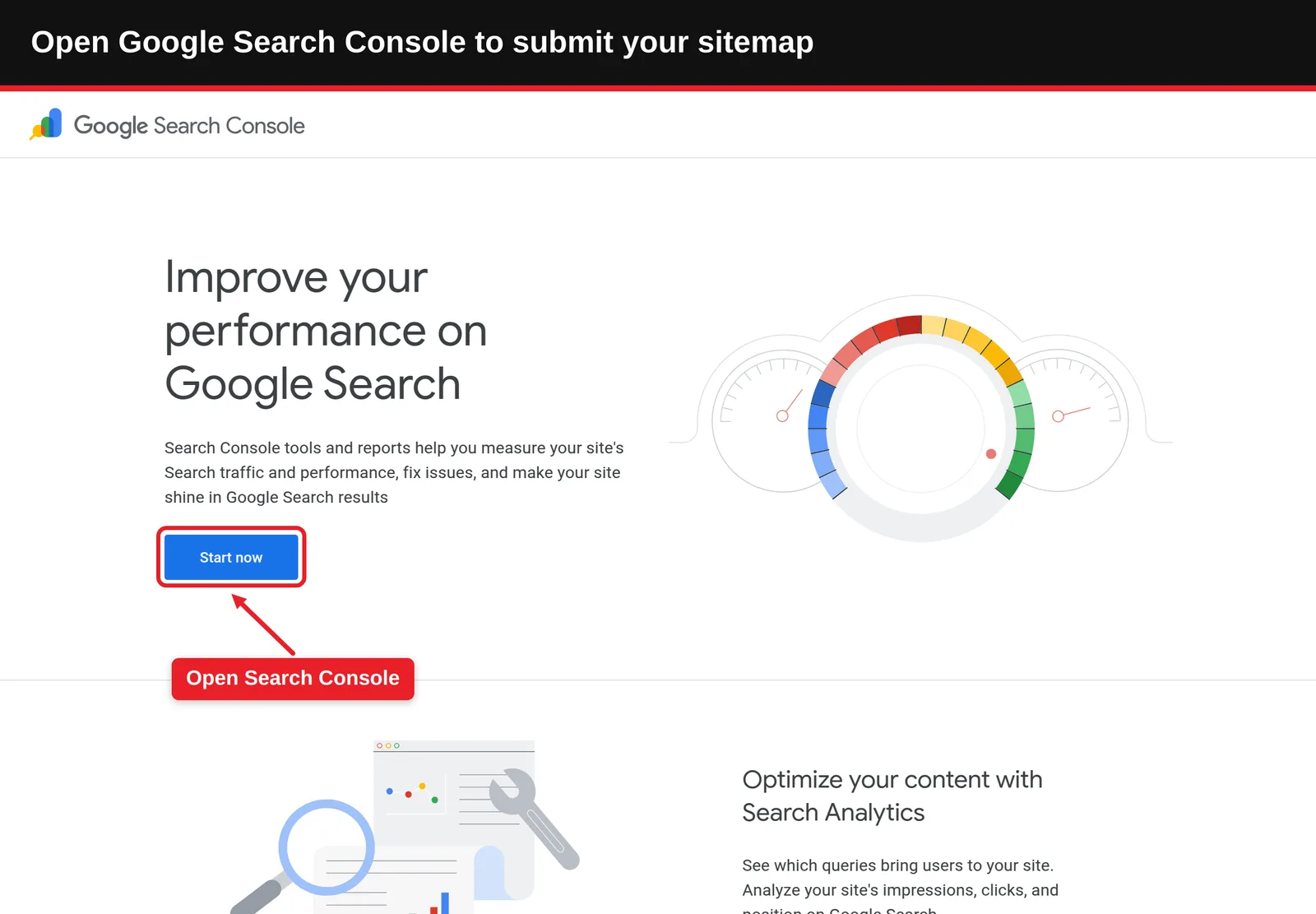
- Open Search Console: Go to Google Search Console and choose your property.
- Find Sitemaps: Under Indexing, select Sitemaps.
- Enter the path: Type wp-sitemap.xml, sitemap_index.xml or sitemap.xml, depending on your setup.
- Submit and check status: Look for "Success" and the number of discovered URLs.
- Add to robots.txt: List the sitemap with a Sitemap: line; see how to add your sitemap to robots.txt and our WordPress robots.txt guide.
Reading the Sitemaps report
- Status: "Success" means Google could read the file; errors point to fetch or format problems.
- Discovered pages: The number of URLs Google found in the sitemap.
- Indexing view: Open the sitemap to see how many of its URLs are indexed and why others aren't.
- Last read: Shows when Google last fetched the file.
Bing and other search engines
Submit the same sitemap in Bing Webmaster Tools, which also matters because Microsoft Copilot draws on Bing's index. A complete, accurate sitemap helps both search engines and the AI features built on them find your pages. hyperank tracks what AI engines such as ChatGPT, Perplexity and Gemini say about your brand, which helps you see whether your published pages are reaching AI answers.
For a full walkthrough beyond WordPress, see how to create and submit an XML sitemap.
Step 7: Fix a Sitemap 404 or Wrong Pages
If your WordPress sitemap returns a 404 or lists pages you don't want, the cause is usually a settings conflict, a permalink issue or two sitemap systems running at once.
| Problem | Likely cause | Fix |
|---|---|---|
| /wp-sitemap.xml returns 404 | "Discourage search engines" is on, or a plugin disabled core sitemaps | Uncheck the setting, or use the plugin's sitemap URL |
| /sitemap_index.xml returns 404 | Rewrite rules not refreshed | Go to Settings, Permalinks and click Save Changes |
| Two different sitemaps | More than one plugin generating sitemaps | Disable sitemaps in all but one plugin |
| Unwanted pages listed | Content types or archives included by default | Exclude them in plugin settings or noindex them |
| Old URLs listed | Cache serving an outdated sitemap | Purge cache and exclude sitemap URLs from caching |
| Search Console "Couldn't fetch" | Blocked, wrong URL or server error | Open the URL yourself, check robots.txt and resubmit |
Check the sitemap's contents
Open each child sitemap and confirm it lists real, indexable, canonical URLs. Redirected, noindexed or 404 pages don't belong in a sitemap and send mixed signals to search engines.
A sitemap should be a list of pages you want found. If it contains pages you'd rather hide, fix the sitemap before you submit it.
Step 8: Get Quick Answers
- Do I need a plugin for a sitemap? No; WordPress 5.5 and later include one at /wp-sitemap.xml.
- Should I have more than one sitemap? One sitemap index is enough; it can link to many child sitemaps.
- How often does Google read it? Google rechecks sitemaps periodically; you don't need to resubmit after every post.
- Does a sitemap guarantee indexing? No; it helps discovery, but Google still decides what to index.
What to Do After You Set It Up
- Phase 1, today: Confirm the active sitemap URL, submit it in Search Console and add it to robots.txt.
- Phase 2, this week: Check the Sitemaps report for errors and review which content types are included.
- Phase 3, ongoing: Re-check after plugin changes, migrations and large content updates.
Resources You'll Need
| Resource | What it's for | Label |
|---|---|---|
| WordPress admin access | Settings and plugins | Required |
| Google Search Console | Submitting and monitoring the sitemap | Required |
| An SEO plugin (Yoast, Rank Math or All in One SEO) | More control over sitemap contents | Optional |
| hyperank sitemap finder and validator | Finding and checking the sitemap | Recommended |
| hyperank | Seeing what AI engines say about your brand | Optional |
Troubleshooting Common Issues
| Problem | Cause | Fix |
|---|---|---|
| Sitemap shows only a few URLs | Content types excluded | Include posts, pages and key types |
| Sitemap shows http URLs | Site URL settings not updated after HTTPS move | Update WordPress Address and Site Address |
| Search Console shows fewer indexed than submitted | Quality or duplication issues | Review the Pages report for reasons |
| Sitemap loads slowly or times out | Very large site or heavy plugins | Split by type and check server performance |
Conclusion
Your WordPress sitemap is at /wp-sitemap.xml by default, or at /sitemap_index.xml or /sitemap.xml when an SEO plugin manages it. Confirm which one is active, keep only one generator running, submit it to Google Search Console, and check it after major changes so it lists the pages you actually want indexed.
- Core URL: /wp-sitemap.xml since WordPress 5.5.
- Plugin URLs: /sitemap_index.xml for Yoast and Rank Math; /sitemap.xml for All in One SEO.
- One system: Disable duplicate sitemap features.
- Submit: In Search Console and robots.txt.
- Fix 404s: Check search visibility, re-save permalinks, clear caches.
Find and validate your sitemap with the free sitemap finder and XML sitemap validator.
FAQ
Where is my WordPress XML sitemap, and how do I set it up?
By default it's at yoursite.com/wp-sitemap.xml. With Yoast SEO or Rank Math it's at /sitemap_index.xml, and with All in One SEO at /sitemap.xml. To set it up, make sure search engines aren't discouraged in Settings, Reading, enable your SEO plugin's sitemap if you use one, confirm the URL loads, and submit it in Google Search Console.
Does WordPress create a sitemap automatically?
Yes. Since version 5.5, WordPress generates a sitemap at /wp-sitemap.xml.
Why is my WordPress sitemap URL different?
SEO plugins usually replace the core sitemap with their own at a different URL.
Why does my WordPress sitemap return a 404?
Common causes are the "discourage search engines" setting, a plugin disabling core sitemaps, or rewrite rules that need refreshing by re-saving permalinks.
Do I need to resubmit my sitemap after every post?
No. Submit it once; WordPress updates it and Google rechecks it periodically.
Should I use Yoast's sitemap or WordPress's?
Use one, not both. Yoast's offers more control; the core sitemap is fine for simple sites.
Methodology: This guide draws on the WordPress core announcement of sitemaps in version 5.5, WordPress developer documentation, Yoast, Rank Math and All in One SEO documentation, and Google Search Central's sitemap guide. Plugin defaults can change between versions, so confirm your sitemap URL by visiting it.
See where your brand stands
How six AI engines describe you, next to your competitors. About two minutes.