
How to Add Your Sitemap to robots.txt (and How the Two Files Differ)
Learn how to effectively add your sitemap xml robots txt and understand the differences between these two essential files in our step-by-step guide.
sitemap xml robots txt | Updated October 2026 | hyperank Editorial Team | 10-20 minutes | Beginner
What You'll Learn
To add your sitemap to robots.txt, put one line anywhere in the file: Sitemap: https://www.example.com/sitemap.xml, using the full, absolute URL. You can add several Sitemap lines, or point to a single sitemap index file that lists the rest. The two files do different jobs: robots.txt tells crawlers which URLs they may crawl, while sitemap.xml lists the URLs you want them to find. Referencing the sitemap in robots.txt helps every crawler discover it; for Google, also submit it in Search Console and validate both files. This guide, How to Add Your Sitemap to robots.txt (and How the Two Files Differ), shows the exact syntax, how sitemap xml robots txt settings work together, how to fix a "sitemap.xml not indicated in robots.txt" warning and how to check everything works.
- The one-line fix: Exact syntax for the Sitemap directive.
- The difference: What robots.txt and sitemap.xml each control.
- Multiple sitemaps: How to list several, or use a sitemap index.
- Verification: Submitting in Search Console and validating both files.
Prerequisites: Access to edit robots.txt (through your server, CMS or SEO plugin) and a working sitemap URL.
Why Adding Your Sitemap to robots.txt Matters in 2026
robots.txt is the first file most crawlers request when they visit a site, so it's the natural place to tell them where your sitemap lives. Google's robots.txt specification says that "Google, Bing, and other major search engines support the sitemap field in robots.txt," and that the field "isn't tied to any specific user agent and may be followed by all crawlers."
That matters more now that many bots visit your site, not just Googlebot and Bingbot. AI search engines run their own crawlers too, and a sitemap reference in robots.txt is a standard, zero-cost way to help any compliant crawler find your important pages.
It also matters because Google retired its sitemap ping endpoint in 2023, leaving robots.txt and Search Console as the main ways to point Google at your sitemap.
The Process at a Glance
| Step | Action | Time | Outcome |
|---|---|---|---|
| 1 | Add the Sitemap line to robots.txt | 2 min | Crawlers can find sitemap |
| 2 | Understand what each file is | 3 min | Clear roles for both files |
| 3 | Know what each file controls | 3 min | No conflicting instructions |
| 4 | Add several sitemaps or an index | 5 min | All sitemaps referenced |
| 5 | Fix the "not indicated" warning | 5 min | Audit warning cleared |
| 6 | Submit the sitemap in Search Console | 3 min | Google reports on sitemap |
| 7 | Validate both files | 5 min | Both files error-free |
Total time: About 10 to 20 minutes.
Step 1: Add the One Line You Need
What You're Doing
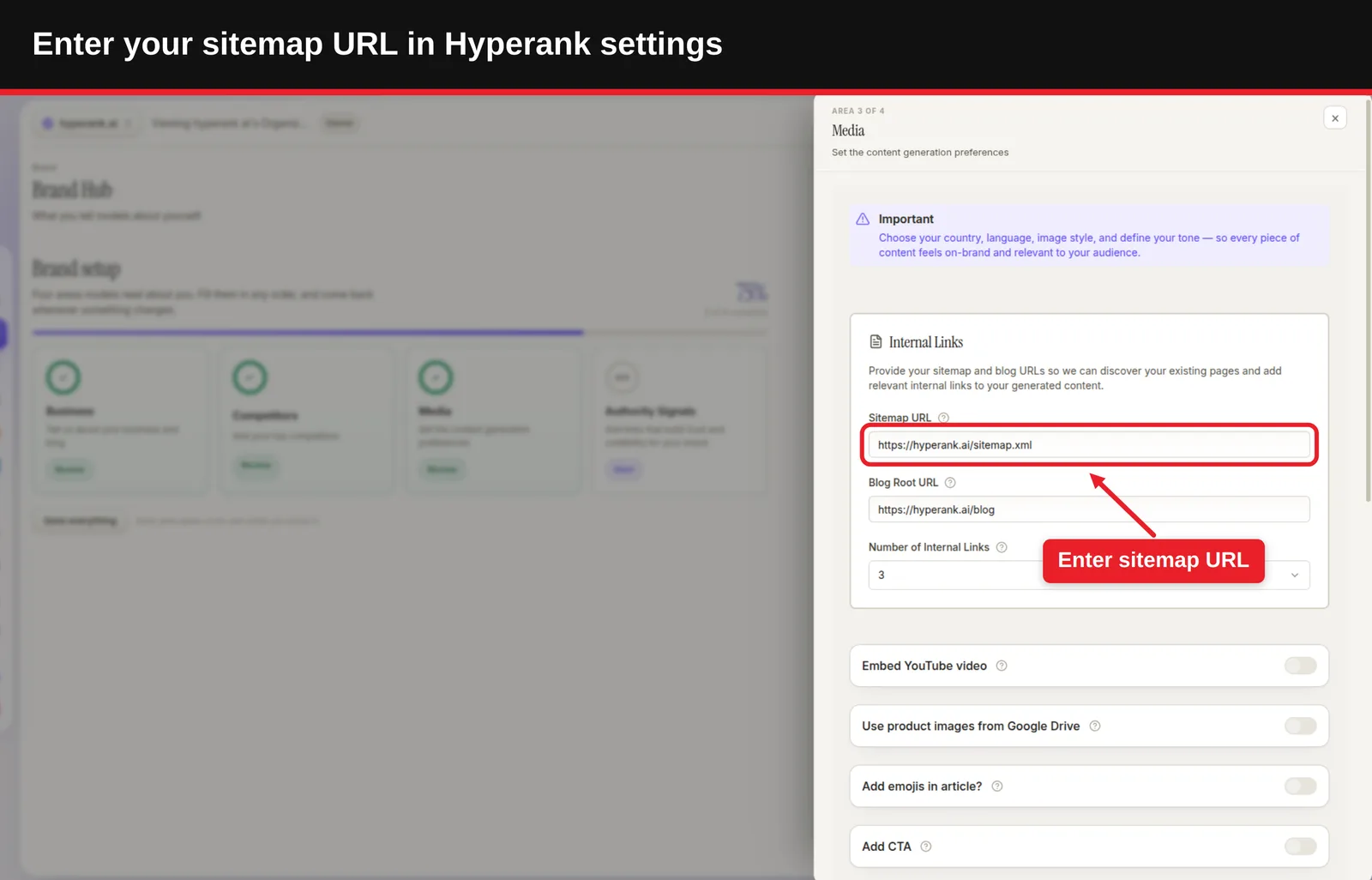
This is the whole fix for most sites: one line in robots.txt that points to your sitemap.
How to Do It
- Open your robots.txt file. It lives at the root of your site, for example https://www.example.com/robots.txt.
- Use the complete, absolute URL, including https:// and the exact host (www or non-www) your site uses.
- Save and upload the file, then load it in a browser to confirm the line is there.
Put it anywhere in the file. A common convention is the end:
User-agent: *
Disallow: /cart/
Disallow: /checkout/

Sitemap: https://www.example.com/sitemap.xml
Add this line, replacing the URL with your sitemap's full address:
Sitemap: https://www.example.com/sitemap.xmlOur free sitemap to robots.txt generator creates the Sitemap lines for you, with optional Allow, Disallow and Crawl-delay rules.
Common Mistakes
- Relative paths:
Sitemap: /sitemap.xmlisn't valid; the spec requires an absolute URL. - Wrong case in the URL: Google's spec says the field name is case-insensitive but the value is case-sensitive, so /Sitemap.xml and /sitemap.xml are different URLs.
What Done Looks Like
Your live robots.txt shows a Sitemap line with the full URL of a sitemap that loads.
Step 2: Know What robots.txt and sitemap.xml Are (Side by Side)
What You're Doing
With the line in place, it's worth understanding what you just connected. The two files are often mentioned together, so you're getting clear on what each one actually is.
How to Do It
| robots.txt | sitemap.xml | |
|---|---|---|
| What it is | A plain text file of crawl rules | An XML file listing URLs |
| Where it lives | Must be at the root: /robots.txt | Usually at the root; can be elsewhere |
| Who reads it | Crawlers, before crawling | Crawlers looking for pages to discover |
| Main job | Allow or disallow crawling of paths | List pages you want found |
| Format rules | UTF-8 text; Google enforces a 500 KiB limit | UTF-8 XML; up to 50,000 URLs or 50MB uncompressed |
| Required? | No, but recommended | No, but recommended |
- robots.txt: Google's spec says you must place it in the top-level directory of a site and that it must be a UTF-8 encoded plain text file.
- sitemap.xml: Defined by the sitemaps.org protocol; Google's sitemap guide covers the size limits and format. Our guide to creating an XML sitemap walks through building one.
What Done Looks Like
You can describe each file's purpose in one sentence.
Step 3: Understand sitemap.xml vs robots.txt: What Each Controls
What You're Doing
Knowing what each file is leads straight to what each one does. The most common mistake is expecting one file to do the other's job, so you're learning exactly what each controls.
How to Do It
- robots.txt controls crawling, not indexing: A disallowed URL can still be indexed without its content if other pages link to it. To keep a page out of results, use a noindex tag and don't block it in robots.txt, or Google can't see the tag.
- sitemap.xml suggests, it doesn't force: Listing a URL helps discovery, but doesn't guarantee crawling or indexing.
- The Sitemap line is the only overlap: robots.txt can tell crawlers where the sitemap is. Google's spec notes that crawlers may follow it "provided it isn't disallowed for crawling."
- Don't contradict yourself: If a URL is in your sitemap, it shouldn't be blocked in robots.txt.
Example
| Goal | Right tool | Wrong tool |
|---|---|---|
| Help crawlers find new blog posts | sitemap.xml, referenced in robots.txt | robots.txt Allow lines |
| Stop crawling of cart and checkout pages | robots.txt Disallow | Leaving them out of the sitemap only |
| Keep a thank-you page out of Google | noindex tag | robots.txt Disallow |
| Show Google the main version of duplicates | Canonical tags, canonical URLs in sitemap | robots.txt |
Check how your current rules treat any URL with our robots.txt checker, which tests URLs against the file using Google's longest-match logic.
What Done Looks Like
Nothing in your sitemap is blocked by robots.txt, and you use noindex, not robots.txt, to keep pages out of results.
Step 4: Add One or Several Sitemaps (Sitemap Index Files)
What You're Doing
One sitemap is simple; many sites have more. You're making sure all of them are discoverable.
How to Do It
- Build an index with our free sitemap index generator, which turns a list of sitemap URLs into a valid sitemap_index.xml.
- Sitemaps on another host: Google's sitemap guide shows that robots.txt on example.com can reference a sitemap hosted elsewhere, such as a CDN, as long as you control both sites.
Option B, use a sitemap index: Create one index file that lists all your sitemaps, and reference only the index. Sitemaps.org says you "can include the location of just that file" and don't need to list each sitemap in it. An index can list up to 50,000 sitemaps.
Sitemap: https://www.example.com/sitemap_index.xmlOption A, list each sitemap: Google's spec says you can specify multiple sitemap fields, with no limit:
Sitemap: https://www.example.com/sitemap-posts.xml
Sitemap: https://www.example.com/sitemap-products.xml
Sitemap: https://www.example.com/sitemap-pages.xml
Best Practices
- Prefer an index on big sites: One line is easier to maintain than dozens.
- Match your CMS: WordPress SEO plugins often create /sitemap_index.xml; reference that, not each child sitemap.
What Done Looks Like
Every sitemap you publish is either listed in robots.txt or included in an index file that is.
Step 5: Fix "sitemap.xml Not Indicated in robots.txt"
What You're Doing
Some SEO audit tools flag this warning when robots.txt has no Sitemap line. You're clearing it properly.
How to Do It
- Confirm the warning is real: open yourdomain.com/robots.txt and look for a line starting with "Sitemap:".
- Find your sitemap's actual URL with our sitemap finder, which checks robots.txt, common paths and homepage links.
- Add the Sitemap line from Step 1 with that exact URL.
- If you use WordPress, check whether your SEO plugin manages a virtual robots.txt; edit it in the plugin rather than uploading a file that may be ignored. Our guide to the WordPress robots.txt file explains how.
- Clear any caching or CDN layer so the updated file is served. More than one "it still says missing" ticket has turned out to be a cached file.
- Re-run the audit tool.
Common Mistakes
- Pointing to a sitemap that redirects or 404s: The warning may clear, but crawlers still can't use it.
- Using the wrong host: A sitemap on http:// or a different subdomain than your live site confuses tools and crawlers.
What Done Looks Like
The audit tool no longer shows the warning, and the referenced sitemap loads with a 200 status.
Step 6: Submit the Sitemap in Search Console as Well
What You're Doing
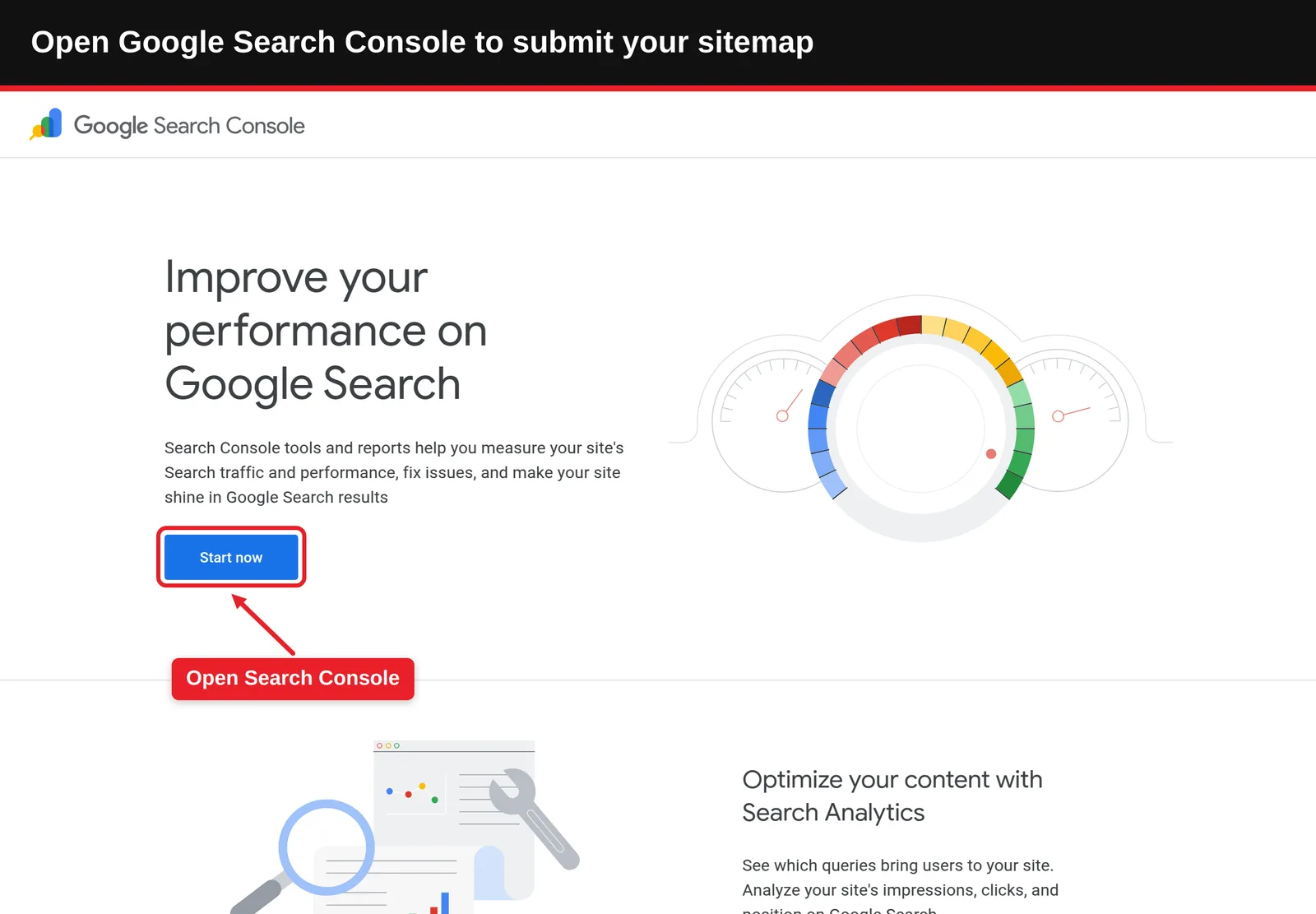
The robots.txt line is for every crawler; Google deserves a direct note too. Search Console tells Google exactly where the sitemap is and gives you a report on it.
How to Do It
- Open Google Search Console and choose your property.
- Go to Indexing > Sitemaps.
- Enter the sitemap or sitemap index URL under "Add a new sitemap" and click Submit.
- Check the status: "Success" means Google read it.
- Do the same in Bing Webmaster Tools under Sitemaps.
Google's sitemap guide lists both methods: submitting through the Sitemaps report and adding the Sitemap line to robots.txt. Using both gives you discovery by all crawlers plus Google's processing report.
What Done Looks Like
Search Console shows your sitemap with a "Success" status and a count of discovered URLs.
Step 7: Validate Both Files
What You're Doing
The last step is making sure neither file has errors that undo your work.
How to Do It
- Validate the sitemap: Run it through our XML sitemap validator, which checks format, off-domain entries and missing tags.
- Test robots.txt: Use the robots.txt checker to confirm key pages and the sitemap URL itself aren't blocked.
- Check Search Console's robots.txt report: It shows the robots.txt files Google found and any fetch problems.
- Spot-check sitemap URLs: A few listed pages should return 200, be indexable and not be disallowed.
- Re-check after changes: Migrations, CMS updates and new plugins often rewrite one file or the other.
Both files also matter for AI crawlers, which read robots.txt like any other bot. To see whether AI engines actually mention your brand once they can reach you, hyperank asks six major AI engines your buyers' questions every day and shows what they say, what they get wrong and which competitors they recommend.
What Done Looks Like
Both files validate, key pages are crawlable, and the sitemap is referenced and submitted.
What to Do After Adding Your Sitemap
- Phase 1, first week, confirm: Check Search Console's Sitemaps and robots.txt reports for errors.
- Phase 2, first month, compare: Review how many sitemap URLs are indexed and investigate gaps.
- Phase 3, ongoing, maintain: Re-validate both files after every migration or major site change; our technical SEO audit checklist includes both.
Resources You'll Need
| Resource | Role | Label | Price |
|---|---|---|---|
| hyperank sitemap to robots.txt generator | Creates Sitemap lines and basic rules | Recommended | Free |
| hyperank robots.txt checker | Tests URLs against your rules | Recommended | Free |
| hyperank XML sitemap validator | Checks sitemap format and entries | Recommended | Free |
| Google Search Console | Sitemaps and robots.txt reports | Required | Free |
| Google's robots.txt specification | Official syntax rules | Optional | Free |
Troubleshooting Common Issues
The Sitemap line is there but tools say it's missing
Likely cause: A cached robots.txt, or a CMS serving a different virtual file. Fix: Clear caches, check the file in a private browser window, and edit it where your CMS manages it.
Search Console says the sitemap "Couldn't fetch"
Likely cause: The URL is wrong, blocked by robots.txt or a firewall, or redirects. Fix: Open the exact URL, make sure robots.txt doesn't disallow it, and resubmit.
Pages in the sitemap show as "Blocked by robots.txt"
Likely cause: A Disallow rule covers URLs you also list in the sitemap. Fix: Remove the conflicting Disallow or take those URLs out of the sitemap.
Changes to robots.txt aren't taking effect
Likely cause: Google caches robots.txt for a while. Fix: Wait, or request a recrawl through Search Console's robots.txt report.
Conclusion
Getting sitemap xml robots txt settings right takes one line: Sitemap: followed by the full URL of your sitemap or sitemap index, placed anywhere in robots.txt. Remember that robots.txt controls crawling while the sitemap lists pages to discover, submit the sitemap in Search Console too, and validate both files.
Key Takeaways
- Outcome: Your sitemap is referenced in robots.txt, submitted to Google and validated.
- Key insight: robots.txt and sitemap.xml do different jobs and must never contradict each other.
- Next action: Open your robots.txt now and check for a Sitemap line with an absolute URL.
FAQ
How do you add your sitemap to robots.txt, and how do the two files differ?
How to Add Your Sitemap to robots.txt (and How the Two Files Differ): add one line anywhere in robots.txt, Sitemap: https://www.example.com/sitemap.xml, using the sitemap's full absolute URL. You can add several Sitemap lines or reference one sitemap index file. The files differ in purpose: robots.txt is a plain text file at your site root that tells crawlers which paths they may crawl, while sitemap.xml is an XML list of URLs you want crawlers to find. robots.txt controls crawling, not indexing, and URLs in your sitemap shouldn't be blocked by robots.txt.
What is robots.txt and sitemap.xml?
robots.txt is a text file of crawl rules at the root of a site. sitemap.xml is an XML file listing the URLs you want search engines to discover.
Where should the Sitemap line go in robots.txt?
Anywhere. The directive is independent of user-agent groups, so its position doesn't matter; many sites put it at the end.
Can I list more than one sitemap in robots.txt?
Yes. Google says there's no limit to the number of Sitemap lines. Alternatively, reference a single sitemap index.
Do I still need to submit my sitemap in Search Console?
It's recommended. robots.txt helps all crawlers discover it; Search Console confirms Google read it and reports errors.
What does "sitemap.xml not indicated in robots.txt" mean?
An audit tool found no Sitemap line in your robots.txt. Add one with your sitemap's full URL to clear it.
Does robots.txt stop pages from being indexed?
No. It controls crawling. A blocked URL can still be indexed without its content; use noindex to keep a page out of results.
Methodology: Syntax and rules come from Google's robots.txt specification and sitemap documentation and the sitemaps.org protocol. The "not indicated" warning wording varies by audit tool; we haven't attributed it to a specific product.
See where your brand stands
How six AI engines describe you, next to your competitors. About two minutes.